Here’s how to change your display name on Outlook so your messages appear exactly how you want them to. No more using that high-school “fun” name on your email account—like coolgamer123—when applying for jobs. Or maybe your Outlook.com messages show your full legal name, leaving nothing private. Either way, it’s time for a quick update that makes your email look clean and professional.
If you’ve ever sent an email and noticed that your name looks incorrect or outdated, don’t worry—it’s easy to fix! In Outlook.com, your display name is what people see when you send them an email. Maybe you recently got married, changed your business name, or just want to refresh your online identity. Whatever the reason, learning how to change it only takes a few clicks.
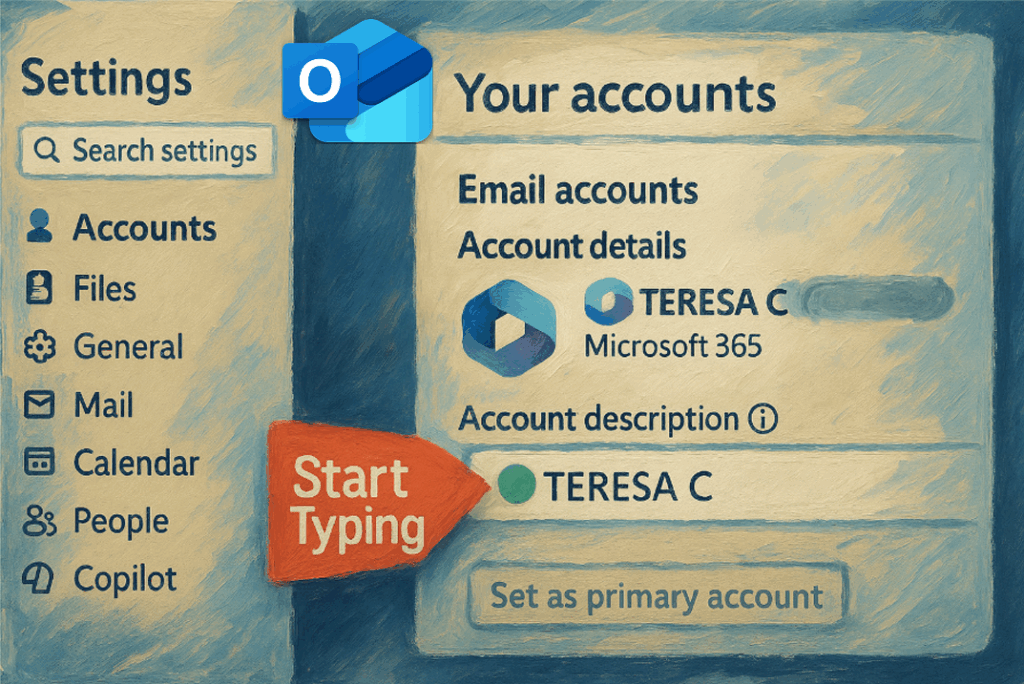
Note: You can change the email account name in New Outlook’s work or school account without touching your actual email address. This setting controls how the account appears in the New Outlook sidebar, and it’s separate from your sender name. See this blog post.
Why This Matters
Your display name sets the tone for how your emails are received. Whether you’re sending a résumé, messaging a client, or just keeping your inbox professional, a proper display name helps you appear credible and organized.
Step-by-Step: Change Your Display Name
- While signed in to Outlook.com, click your profile picture in the top-right corner.
- Select My Profile from the dropdown menu.
- You may be asked to verify your login—follow the on-screen prompt.
- Under Your Info, click Edit name.
- Update your Full Name and click Save.
That’s it! Your new name will now appear when you send emails from your Outlook.com account.
Tip: Be Patient
It can take a few minutes for your new name to appear in outgoing messages. If you don’t see it right away, try refreshing Outlook or signing out and back in.
Now go ahead—update your name in Outlook.com and Work Your Magic!