To change your Sender display name in Outlook, update the name saved in your Microsoft account profile. This is the sender name recipients see when your email arrives.
For example, your recipient may see:
Teresa B. Cyrus <email address>
However, the correct steps depend on the type of email account you use. This guide also explains how to update the sender display name for Microsoft 365 business accounts, Gmail, Yahoo, and other accounts connected to New Outlook.
Sender Display Name vs. Account Display Name
The sender display name identifies you to the people receiving your messages.
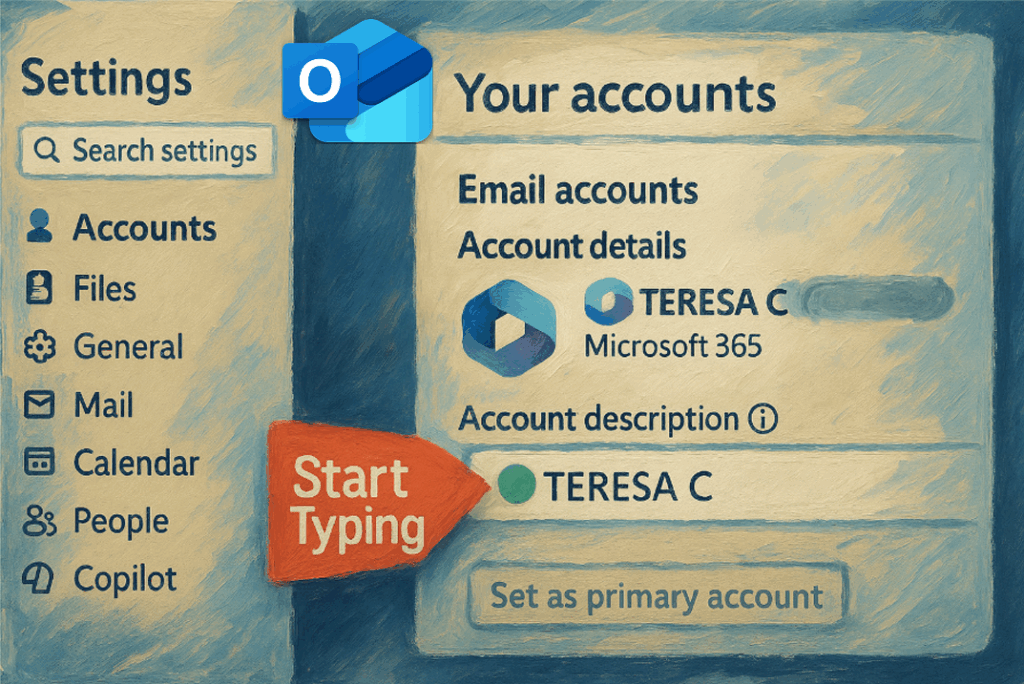
It is different from the account display name shown in the Outlook folder pane. Renaming the account inside Outlook helps you distinguish between multiple mailboxes, but it does not change the sender name recipients see.
To rename the account shown in Outlook, see Rename Mailbox in New Outlook Using Account Description.
Before You Change Your Sender Display Name
New Outlook may show your complete email address in the From field while you compose a message.
This can be helpful when you have several accounts with similar names because it confirms which email address will send the message.
In my testing, New Outlook displayed my email address while I composed the message. However, once the message arrived, the recipient saw my configured display name.
Therefore, send a test message to another mailbox before changing anything.
If the correct display name appears after delivery, no change is needed.
How to Change Your Display Name in Outlook.com
Outlook.com, Hotmail.com, Live.com, and MSN.com accounts use the display name saved in your personal Microsoft account profile.
To change your name:
- Sign in to Outlook.com.
- Select your profile picture in the upper-right corner.
- Select My Microsoft account or View account.
- Open Your info.
- Select Edit name.
- Enter the name you want recipients to see.
- Select Save.
Your updated display name may take up to 24 hours to appear across Microsoft services.
After the account updates, send another test message and confirm that the correct name appears.
Microsoft 365 Work or School Accounts
Most organizations manage employee display names through Microsoft 365, Microsoft Entra ID, a human resources system, or another company directory.
As a result, many employees cannot change their own sender display names. Contact your IT administrator or help desk if your name is missing, outdated, misspelled, or otherwise incorrect.
Microsoft 365 Administrator Steps
n the Microsoft 365 admin center.
- Open the Microsoft 365 admin center.
- Select Users.
- Select Active users.
- Select the person whose name needs to change.
- On the Account tab, select Manage contact information.
- Update the Display name.
- Select Save changes.
Microsoft identifies User Administrator as the required role for changing a user’s display name. A Global Administrator role is not required solely for this task.
Some organizations synchronize user information from an on-premises directory or another system. In those environments, the administrator may need to change the name in the original system.
Gmail Accounts Connected to New Outlook
New Outlook does not currently provide a setting for changing the Gmail sender display name. Instead, update the name through Gmail.
On a computer:
- Open Gmail.
- Select Settings.
- Select See all settings.
- Open Accounts and Import or Accounts.
- Locate the Send mail as section.
- Select Edit info beside the email address.
- Enter the name you want recipients to see.
- Select Save changes.
Google notes that you cannot change this setting through the Gmail mobile app.
Yahoo Accounts Connected to New Outlook
For a Yahoo account, change the sending name through Yahoo Mail.
- Sign in to Yahoo Mail.
- Open Settings.
- Select More Settings.
- Select Mailboxes.
- Select the email address you want to update.
- Change the name in the Your name field.
- Select Save.
Yahoo defines the sending name as the name recipients see when they receive your email.
Other IMAP or POP Accounts
For another IMAP or POP account, sign in to the email provider’s website.
Look for a setting named:
- Sender name
- From name
- Sending name
- Mailbox name
- Account identity
The wording and availability depend on the email provider.
If the provider does not offer a sender-name setting, contact its support team. New Outlook cannot directly change the sender display name for every connected email service. Microsoft confirms that editing the display name recipients see is not currently available in New Outlook for Windows.
Submit Feedback to Microsoft
The ability to change the sender display name for Gmail, IMAP, and POP accounts directly in New Outlook has been a common request from users.
You can submit this suggestion to Microsoft from within New Outlook.
Select:
Help > Feedback > Suggestions
Explain that you want an option to change the sender display name for connected email accounts without signing in to each email provider’s website.
Microsoft directs New Outlook users to submit product suggestions through Help > Feedback.
Test the Updated Display Name
After making the change:
- Wait for the account information to update. It may take up to 24 hours.
- Close and reopen New Outlook.
- Send a test message to another email account.
- Open the delivered message.
- Confirm the name shown beside the sender’s email address.
Once the correct sender display name appears, you are all set.
Now, go and work your magic!
Lorem ipsum dolor sit amet, consectetur adipiscing elit. Ut elit tellus, luctus nec ullamcorper mattis, pulvinar dapibus leo.