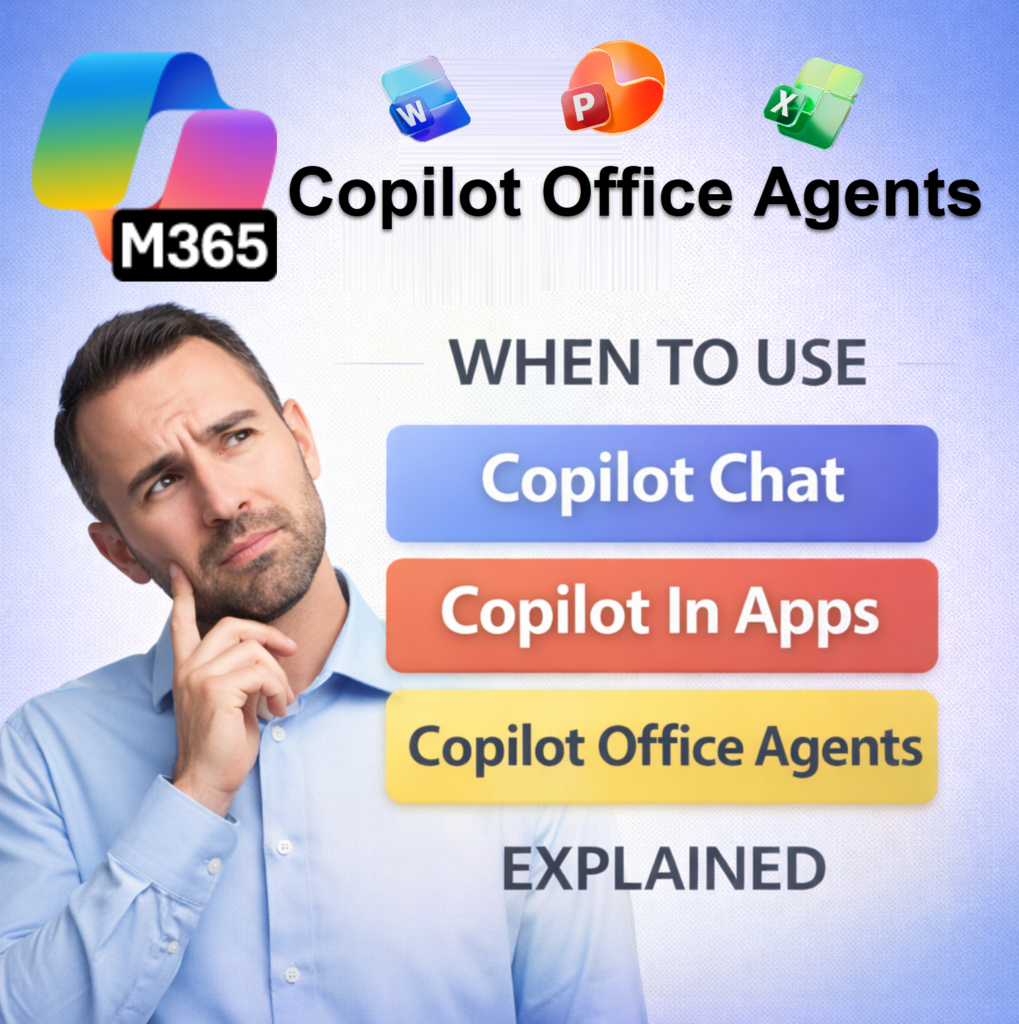
Copilot Office Agents are often confused with Copilot Chat and Copilot in apps because Microsoft uses the same Copilot name across multiple experiences. While these tools are related, they behave very differently depending on where you use Copilot and what license you have, especially when working in Word, PowerPoint, and Excel.
In reality, many organizations operate in a Copilot Hybrid Workplace. This means a company may have users with different Copilot licenses across teams. Licensing impacts how Copilot interacts with Word, PowerPoint, and Excel. Understanding when to use each option matters more than understanding features.
Let’s break it down.
The simple way to remember Copilot
- Copilot Office Agents help you find, discover, and coordinate work
- Copilot Chat helps you think and write
- Copilot in apps helps you do and build
Same Copilot. Different scope.
Copilot Office Agents
(Requires Microsoft 365 Copilot license)
Copilot Office Agents are not editors. They are coordinators. They work before you open Word, PowerPoint, or Excel.
What Copilot Agents do
- Search across Microsoft 365
- Find relevant files, emails, and chats
- Pull information from multiple apps
- Prepare structured content for use in apps
Example
You ask a Copilot Agent: “Create a presentation using my latest sales data.”
The agent:
- Finds the relevant Excel file
- Pulls insights
- Prepares structured content
- Hands it off to PowerPoint
Copilot Agents help you find, discover, and coordinate work.
Copilot Chat
(No Microsoft 365 Copilot license required)
Copilot Chat is a standalone assistant. It does not live inside Word, PowerPoint, or Excel. So, the Copilot Office Agents for Word, PowerPoint, and Excel are unsupported. Here’s why.
What Copilot Chat does
- Helps you brainstorm ideas
- Drafts text you can reuse
- Explains topics or answers questions
- Summarizes content you manually paste in
What Copilot Chat does not do
- It cannot open or edit your files
- It cannot create slides or documents
- It cannot see your emails, chats, or documents
- It does not work inside Microsoft apps
Example
You ask Copilot Chat: “Draft an outline for a presentation on change management.”
Results: Copilot Chat gives you text only. You must copy and paste it into PowerPoint.
Copilot Chat helps you think and write.or
Copilot in Apps (Word, PowerPoint, Excel)
(Requires Microsoft 365 Copilot license)
Copilot in apps is embedded directly inside the app you’re using. It works on the file you have open.
What Copilot in apps does
- Creates content directly in the file
- Builds slides, documents, tables, and summaries
- Rewrites and restructures content
- Uses files you explicitly attach or reference
Copilot in apps helps you do and build.
Where does Copilot get content if no file is attached?
When you prompt Copilot in Word or PowerPoint without attaching a file, Copilot uses:
- Your typed prompt
- General AI language knowledge
- Optional public web information (if enabled)
What Copilot is not doing automatically
- It is not searching OneDrive
- It is not scanning SharePoint
- It is not reading emails or Teams chats
- It is not pulling Excel data behind the scenes
If you didn’t attach it or paste it, Copilot does not know it exists.
Example: Word (no file attached)
Prompt: “Create a one-page remote work policy.”
Result:
- Generic structure
- Common language
- No company-specific content
Example: PowerPoint (no file attached)
Prompt: “Create a presentation on change management.”
Result:
- Standard slide titles
- Common talking points
- No internal metrics or prior decks
When real work data does come into play
Copilot in apps uses your actual work content only when:
- You attach a document
- You paste content
- You explicitly reference a file
- A Copilot Agent is involved
Final Takeway
In a Copilot Hybrid Workplace, users rely on different Copilot entry points based on their roles and licenses. Knowing when to use each option removes confusion and sets realistic expectations.
Remember this:
- Copilot Chat → Think and write
- Copilot in apps → Do and build
- Copilot Agents → Find and coordinate
Now, go and work your magic.