Microsoft is modernizing Outlook, but modernization does not automatically mean feature parity.
One of the most common mistakes users make is assuming New Outlook works the same way as Classic Outlook. Users switch, try to work the way they always have, run into missing features or changed behaviors, and quickly return to Classic Outlook because the familiar workflow feels easier.
That frustration usually comes from workflow disruption:
- Features are renamed, relocated, or redesigned
- Some tools behave differently
Others aren’t available yet or require a new way of working.
New Outlook. New and Enhanced Workflows.
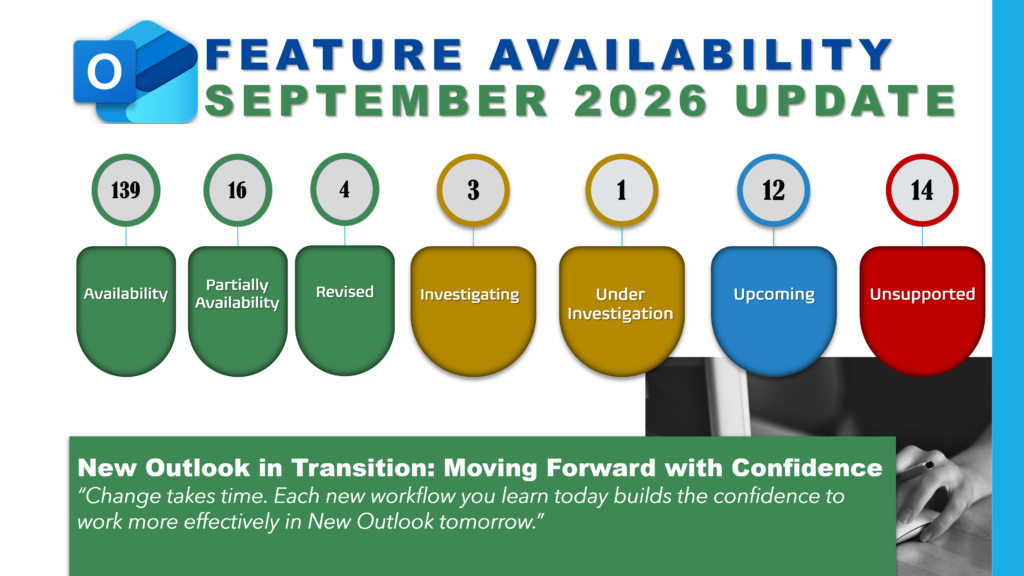
Microsoft’s Feature Comparison currently tracks 189 feature entries across Mail, Calendar, Search, Collaboration, Copilot, Security, and other areas. Among them, 24 productivity-impacting features are available in New Outlook but not available in Classic Outlook. At the same time, some Classic Outlook capabilities remain partially available, upcoming, under investigation, or not supported in New Outlook.
This printable guide helps you choose the right Outlook experience for how you actually work.
We focus on the features that impact daily workflows, making it easier to understand where New Outlook is ready today and where Classic Outlook may still be needed.
I update this guide when Microsoft updates its Feature Comparison website. This September 2026 edition reflects Microsoft’s latest General Availability changes posted as of September 23, 2026.
Get the Printable New Outlook Feature Comparison (PDF): click here
Five Productivity Wins in New Outlook
These are the areas where New Outlook most clearly changes how work gets done.
- Modern Calendar Experience: Work hours and location, show/hide declined meetings, and more innovative scheduling to reduce calendar friction like RSVP, follow, and follow up on meetings from your inbox.
- Improved Collaboration: Built-in Teams integration, meeting chat, sharing to Teams, and internal newsletter creation streamline communication and coordination.
- Cleaner, Faster Interface: Simplified navigation, quick actions, pinning, bulk moves, enhanced category functionality, and focused inbox improvements support faster email triage.
- Cloud-First Search & Security: Enhanced search suggestions, sensitivity labels, and modern compliance integration improve findability and data protection.
- Copilot-Driven Assistance: Summarize email threads, draft responses, schedule meetings, and receive coaching suggestions directly in context. With a premium Copilot license, prioritize messages.
If your work is primarily cloud-based and collaborative, these changes are meaningful.
Five Reasons Some Users Still Need Classic Outlook
These gaps explain why many professionals still can’t fully switch.
- PST and Offline-First Workflows: Full PST usage and deep offline scenarios remain limited.
- Legacy Extensibility: COM add-ins, VBA macros, custom forms, MAPI, and Outlook Object Model dependencies are not supported.
- Advanced Mail Management: Personalized mail merge has partial functionality, though some features are on the 2026 roadmap.
- Enterprise & Regulated Scenarios: Certain government clouds, advanced archives, and legacy integrations still require Classic Outlook.
- Power-User Customization: Users who heavily favor Classic Outlook behavior will find fewer customization options and limited rule-based automation today.
These limitations are why many organizations and power users still rely on Classic Outlook.
Quick Verdict: New Outlook vs Classic Outlook
Who Should Switch to New Outlook
New Outlook works best if you:
- Use Microsoft 365 with cloud mailboxes
- Rely on Teams and collaboration
- Want Copilot-assisted productivity
- Prefer a simplified, modern interface
- Don’t depend on legacy add-ins or macros
Who Should Wait Before Switching
You should pause if you:
- Depend on PSTs, COM add-ins, or VBA
- Work offline frequently
- Manage complex mail automation
- Support regulated or legacy environments
- Need full parity with Classic Outlook today
Want the Full Feature Outlook Comparison?
This guide gives you clarity.
The printable guide gives you details.
If you want a shareable reference guide organized by availability for all feature areas across Mail, Calendar, Search, Security, Copilot, Extensibility, and others:
Get the Printable New Outlook Feature Comparison (PDF): click here
Updated as Microsoft posts changes to its Feature Comparison website, so you have a current reference.

Final Words of Encouragement
Give New Outlook a try and start building new workflows.
New Outlook has improved significantly since its launch in 2022. You can work in New Outlook while keeping Classic Outlook open when you need legacy features. To review the features introduced in 2025, watch this video.
Now, go and work your magic.