Mail Merge in New Outlook gives you a simple way to send individual emails to multiple people without exposing anyone’s address. If you used Classic Outlook before, this version will feel different, but in a way that reduces mistakes and keeps things more private.
Prefer to watch instead? I’ve got you covered. Check out the walkthrough video here to follow along with the steps and workarounds.
What’s Changed in Mail Merge for New Outlook
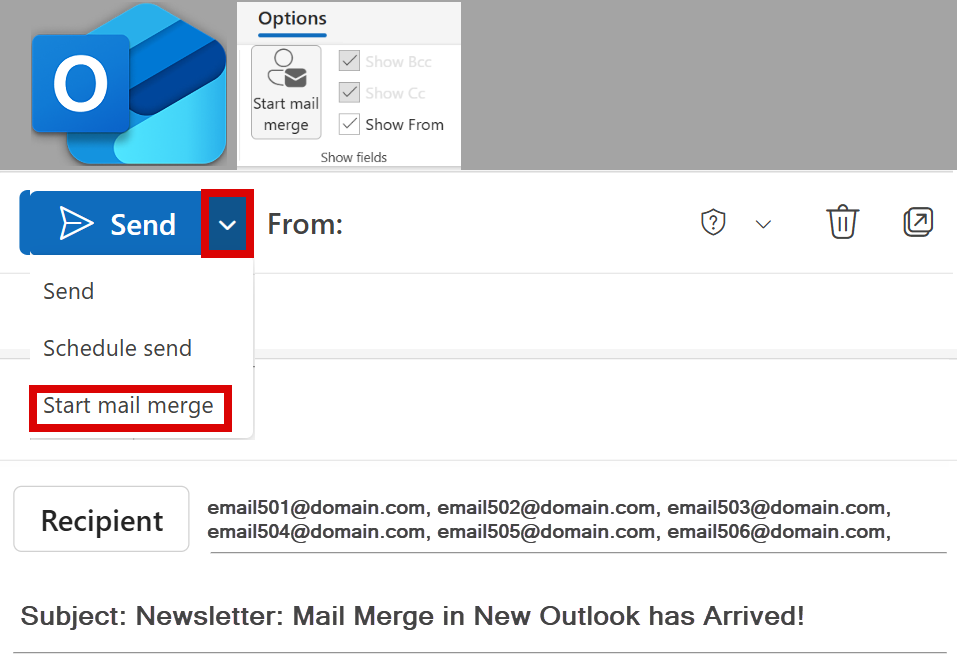
The first thing you’ll notice is how stripped down the Mail Merge window looks. There’s:
One box for recipients
No To, CC, or BCC fields
No option to browse your contact lists
It’s easy to think something is broken, but this is intentional. Microsoft removed the clutter so people don’t accidentally expose emails through CC or send bulk messages to the wrong group.
How to Get to Mail Merge
You can open Mail Merge from:
Options → Mail Merge
Send dropdown → Mail Merge
Both lead to the same panel.
Using Contact Lists (Yes, You Still Can - But!)
Distribution Lists don’t appear in the picker anymore, but you can still use them:
Type the list name into the Recipients box.
Click the + icon to expand the list into individual names.
If you forget to expand the list, recipients may see each other’s addresses. You also cannot recall sent messages to external contacts. I suggest watching the video for step-by-step guide.
What Mail Merge in New Outlook Can’t Do Yet
Right now, New Outlook does not support any personalization fields. That means you cannot insert:
First name
Last name
Company
Custom placeholders
You can still write warm, general greetings. Examples that work well:
“Hello Trailblazers” for newsletters
“Dear VIP Registrant” for event emails
“Hello Gold Sponsor” for sponsorship communications
Microsoft has confirmed that more personalization features will arrive in early 2026.
What Happens When You Send a Mail Merge
When sending bulk messages using Mail Merge in New Outlook, expect the following:
Mail Merge sends one email per person, and Outlook stores each copy in the Sent folder.
This makes follow-up easier because you can see the exact email that went to each person.
However, sending to large lists means your Sent folder fills quickly.
BCC vs Mail Merge: Choosing the Right Approach
BCC is ideal when:
You want a single message delivered to a group
You want only one Sent item saved
You don’t need tracking, individual follow-up, or personalization
Mail Merge is ideal when you need individual messages and per-recipient tracking.
Key Mail Merge in New Outlook Limitations to Know
Mail Merge in New Outlook is still evolving. It’s best suited for:
Internal updates
Community or small business newsletters
If you need analytics or advanced personalization, you’ll need a dedicated email platform until Microsoft releases the next wave of features.
More Mail Merge Improvements in New Outlook Are Coming
Also, Quick Parts, which allows users to add snippets in email messages, are now available in New Outlook. You can read this blog post or watch the video.
Before You Go
Need Help With Microsoft 365 Workflows?
I help individuals and teams get more out of Outlook, Microsoft 365, and Copilot.
If this topic sparked ideas for your organization, explore my training services here: Services » TRACCreations4E.
Now go ahead and Work Your Magic.
Additional Resources for Mail Management in New Outlook
IMPORTANT UPDATE. Beginning April 2025, Microsoft is enforcing new limits on daily outbound emails. Exceeding the limit could block your entire organization from sending any emails.