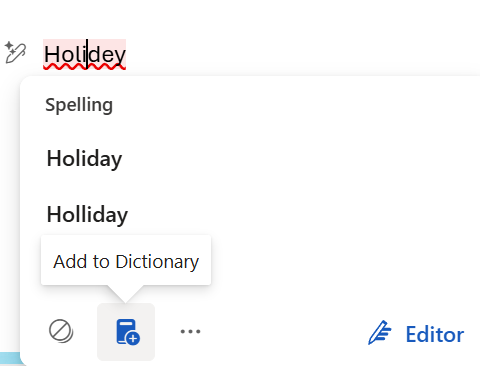
To use the Custom Dictionary New Outlook features properly, you must add your custom names, acronyms, and brand terms to New Outlook’s cloud-based dictionary. This way, you can stop Outlook from correcting your custom terms when it is indeed accurate. However, you should know that Classic Outlook stores these words in a separate local file that New Outlook does not read. This guide shows you how to add your important terms to the correct dictionary so New Outlook stops changing them.
You can also watch the step-by-step video if you prefer a quick walkthrough.
What the Custom Dictionary Does in New Outlook
The Custom Dictionary prevents unwanted red underlines and autocorrections. This is helpful when you work with:
Product names
Technical abbreviations
Internal project codes
Client names
Non-standard spellings
New Outlook uses the Microsoft 365 proofing engine. Your approved words follow you across supported applications.
Where the Dictionary Is Stored
Classic Outlook uses a local file named CUSTOM.DIC located at: %APPDATA%\Microsoft\UProof (You can copy and paste this link in Windows Explorer.)
New Outlook uses a cloud file named RoamingCustom.dic that you cannot open, view, or download. It is not connected, synced, or merged with Classic Outlook’s dictionary.
This is why custom words you added in Classic Outlook do not follow you into the new app.
Note: Outlook.com (free version) does not support Classic or New Outlook dictionary files. It uses Microsoft Editor and browser-level spell check instead.
Classic Outlook vs New Outlook: Custom Dictionary Differences
These differences are the root cause of the confusion users experience when switching versions.
Behavior
Classic Outlook
New Outlook
Storage
Local CUSTOM.DIC on the PC
Cloud RoamingCustom.dic tied to Microsoft account
Sync
Never syncs across devices
Syncs across Word, PowerPoint, and Editor
Add to dictionary
Writes to local file
Writes to cloud file
File access
User can open CUSTOM.DIC file
File is hidden, not accessible
Migration
Manual file only
No import or export available
Control location
Outlook Options
Word > Options > Proofing
Autocorrect behavior
Local rules
Cloud rules, unified with M365
Cross-app usage
Limited
Universal across M365 apps
How to Add Words to the Custom Dictionary in New Outlook
Method 1: Add a Word While Typing
Right-click the underlined word.
Select Add to dictionary.
This adds the word to RoamingCustom.dic.
Method 2: Add or Remove Words Using Microsoft Word
Open Microsoft Word.
Go to File > Options > Proofing.
Select Custom Dictionaries.
Choose RoamingCustom.dic.
Click Edit Word List.
Add or remove words.
Save and close.
New Outlook reads directly from this file.
Download Classic Outlook Dictionary
If you want to review or reuse Classic Outlook custom words:
Open File Explorer
Paste into the address bar: %APPDATA%\Microsoft\UProof
Double-click CUSTOM.DIC
Choose Notepad or Microsoft Word
This lets you see which words you may want to manually re-add to New Outlook.
How to Review the List from New Outlook’s “Personal Dictionary” Menu
In the New Outlook composed message, navigate to:
Options | Editor → Personal Dictionary
This list displays entries from the same cloud dictionary: RoamingCustom.dic.
Note:
Microsoft Word may still be using the old CUSTOM.DIC
New Outlook always uses RoamingCustom.dic
If Word has both dictionaries enabled, behavior becomes inconsistent
This mismatch makes it appear that New Outlook and Word disagree on spelling — but they are using different sources.
How to Get a Universal Experience Across New Outlook and Microsoft Word
To ensure consistent behavior across Microsoft 365:
Open Microsoft Word
File → Options → Proofing → Custom Dictionaries
Set RoamingCustom.dic as the default
Uncheck CUSTOM.DIC (optional, recommended)
This ensures all new custom words apply across:
New Outlook
Word
PowerPoint
Office.com
Microsoft Editor
Classic Outlook will still use CUSTOM.DIC, but all modern apps will remain consistent.
Before You Go
The Custom Dictionary in New Outlook is part of Microsoft’s shift from local storage to cloud-based tools. The recommendation is to use RoamingCustom.dic, manage it through Word, and you’ll get consistent spelling across all supported Microsoft 365 apps.