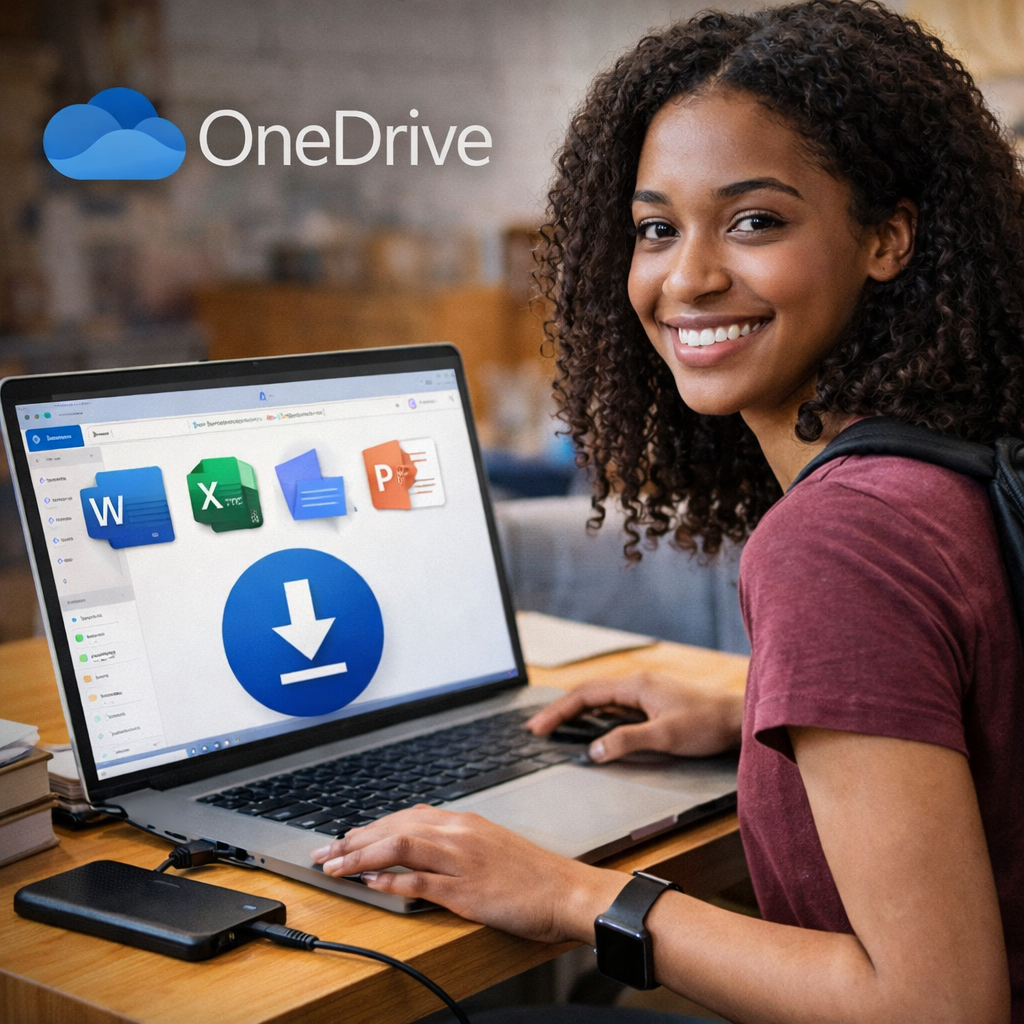
Download OneDrive files before graduation to keep your class work, projects, resumes, presentations, spreadsheets, PDFs, and personal documents accessible later. If those files are still sitting in your school account when access is removed, getting them back may not be easy.
This post is for students using a Microsoft 365 school account who want to keep access to their files after graduation, even if they do not plan to continue with Microsoft 365.
I will walk you through a practical plan to download, organize, verify, and store your OneDrive files before the account is deactivated.
Why You Need to Download School OneDrive Files Before Graduation
Your school OneDrive may contain much more than homework.
It may also hold:
- resumes
- internship materials
- capstone projects
- research files
- PowerPoint decks
- Excel spreadsheets
- PDFs
- personal files
- photos and videos
If you do not download that content before your school account closes, you may lose access to work you still need.
That is why I do not recommend waiting until the last minute.
Before You Download OneDrive Files
Do not assume this is a quick task.
Large downloads can take time. You also need enough storage on your computer before you begin.
Check Your Computer Storage in Windows 11
- Click the Start button
- Click Settings
- Click System
- Click Storage
- Review your available disk space
If your storage is already low, stop and clean up space first or connect an external drive.
Plan Enough Time
If you have a large number of files, give yourself time. Do not start this process the night before graduation or after your school sends a final warning message.
Decide Where Your Files Will Go
Before downloading anything, decide where you want to store your files:
- your computer
- an external drive
- both
I recommend both if possible.
The Download OneDrive Files Backup Plan I Recommend
This is the better-safe-than-sorry plan I recommend:
- Download your OneDrive files in smaller sections
- Organize the files on your computer
- Move the files to an external drive
- Verify the files open correctly
- Keep a second copy if possible
This gives you a more reliable backup than one giant rushed download.
Step 1: Download OneDrive Files in Smaller Sections
Do not try to grab everything at once unless your OneDrive is very small.
A better approach is to download your files in sections such as:
- by semester
- by school year
- by course
- by project
- by file type
- by email attachments
This makes the download easier to manage and easier to verify later.
Note: Emails attachments are saved on OneDrive under the Attachments folder.
How to Download OneDrive Files
- Sign in to your school OneDrive
- Open the folder you want to save
- Select the file or folder
- Click Download
- Wait for the ZIP file or file download to finish
- Save the download to a folder you can find later
If your content is large, repeat this process in smaller chunks.
Step 2: Organize OneDrive Files on Your Computer
Do not leave everything in random Downloads folders.
Create a clear folder structure on your computer so the files still make sense later.
Example:
- School Files
- Freshman Year
- Sophomore Year
- Junior Year
- Senior Year
- Email Attachments
- Certifications
- Resume and Career Files
- Personal Files, Images, or Videos
If file names are vague, rename them while the content is still fresh in your mind.
Step 3: Move OneDrive Files to an External Drive
Do not leave everything on one laptop.
An external drive is a smart investment for backing up school and personal files. I use external drives for multiple backups, including mobile phone photos and videos. They help you store documents, presentations, projects, and personal content in one place without taking up space on your computer. I personally like the Toshiba and WD Elements brands.
I personally like the Toshiba and WD Elements brands.
Here are a few options:
Step 4: Verify Your OneDrive Files Open Correctly
This step is not optional.
Do not assume a download worked just because the ZIP file finished.
Open a sample of your files and confirm they still work:
- Word documents
- PowerPoint presentations
- Excel spreadsheets
- PDFs
- images
- videos
If something is missing or broken, fix it while you still have access to your school account.
What Not to Do When You Download OneDrive Files
This is where people waste time or make avoidable mistakes.
Do Not Wait Until the Last Minute
This is the biggest mistake. If you wait too long, you may run out of time or lose access before you finish.
Do Not Leave Everything in ZIP Format
A ZIP file is not your final organization plan. Extract the files and check them.
Do Not Store Everything in Only One Place
If the only copy lives on your laptop and the laptop fails, your backup is gone.
Do Not Assume OneDrive Sync Is Enough
Sync helps while the account is active. It is not the same thing as creating your own download and storage plan.
Do Not Forget Your Outlook Backup Plan
Your files are only one part of your school account.
If you also need to preserve email, contacts, calendar items, and attachments, read my Outlook post: Back Up School Outlook Email Before Graduation. That post covers the mailbox side of your graduation backup plan.

Before You Go
If this post helped you, give it a like so other students can find it too.
Do not wait until the last minute. School accounts can close faster than you think, and that is how important files get missed. Tell your classmates and fellow undergraduates to get an external drive and repeat this backup process after each semester or school year.
I back up my own content several times a year because I want my own copy under my control. Cloud storage is helpful, but I still prefer that extra layer of protection.
Download your OneDrive files while you still have access. Then make sure your Outlook email, calendar, and contacts are backed up too.