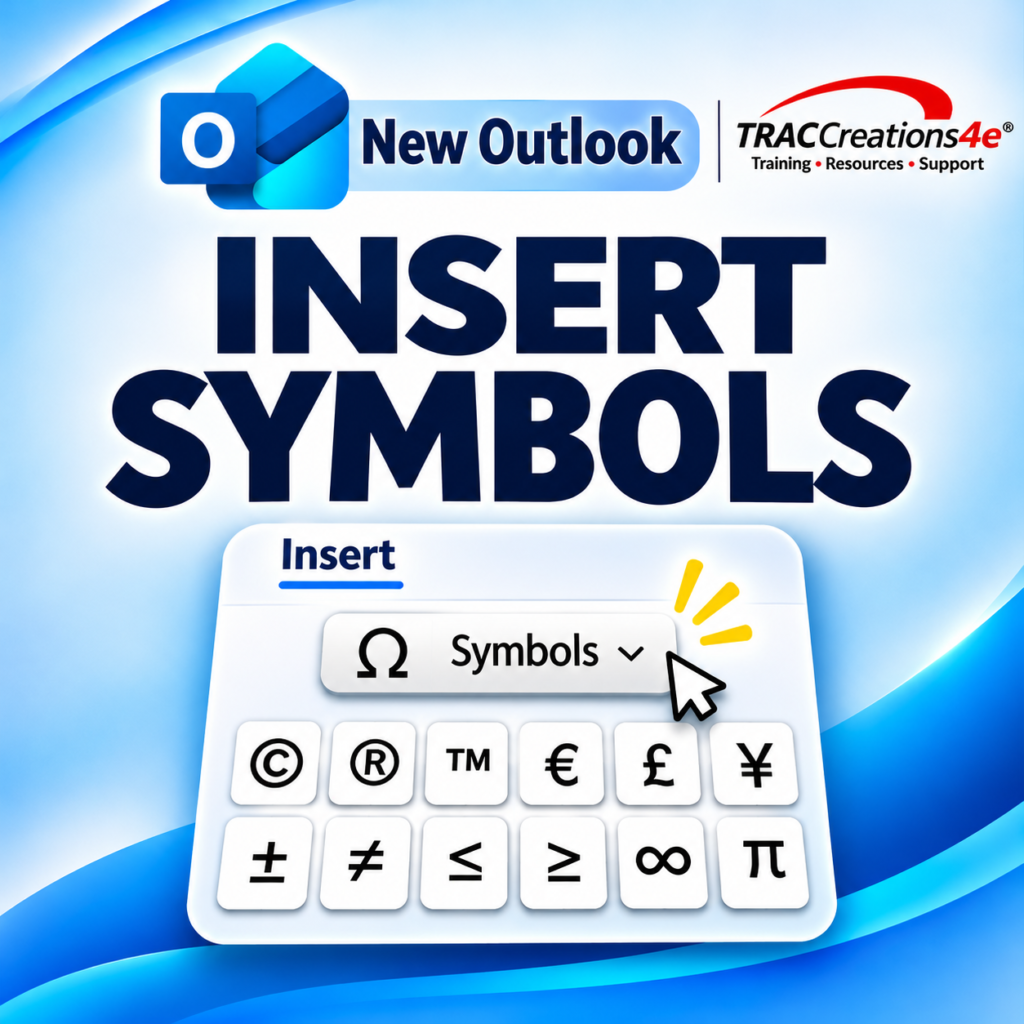
Previously, New Outlook users often copied characters from other applications or opened the Windows character picker. Microsoft is adding the Symbols command through Microsoft 365 Roadmap 571683.
I tested the feature in New Outlook for Windows in November 2026. Here’s how it works, which symbols appear in the library, and how the experience compares with Classic Outlook.
How to Insert Symbols in New Outlook
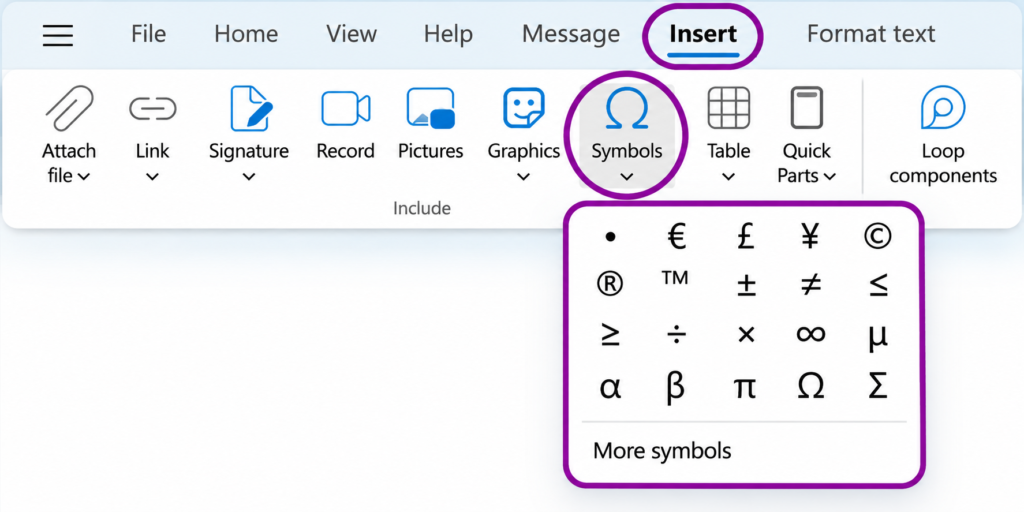
While composing an email, New Outlook lets you select symbols directly from the Insert tab.
Open a new email or reply to an existing message.
Place your cursor where you want to add the symbol.
Select Insert → Symbols.
Browse the available characters and select the one you need.
In my testing, selecting a symbol inserted it into the message. The library includes a mix of business, mathematical, and language characters.
For example, when emailing an international client, you can insert € or £ without leaving your message. The exact set visible may change as Microsoft develops the feature.
If this post has been helpful so far, give it a Like.
Use Windows + Period for More Special Characters
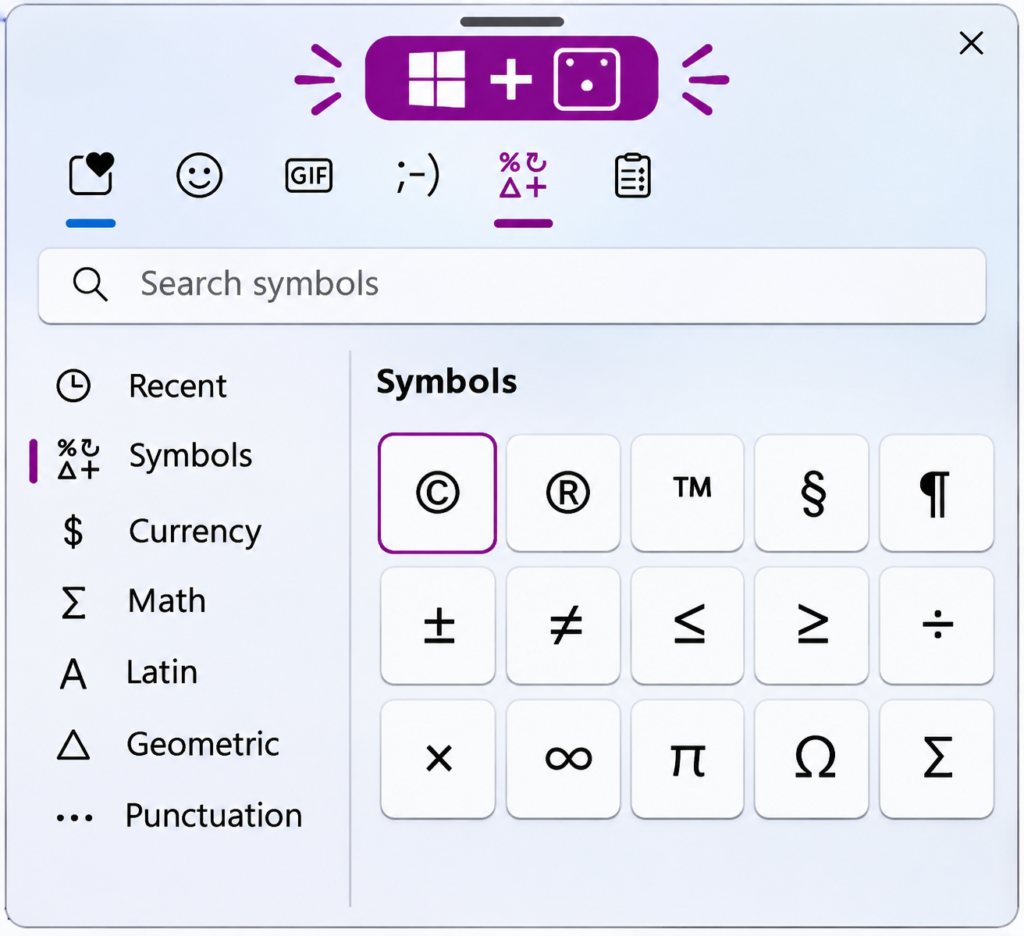
The built-in Symbols library is not your only option. If the character you need isn’t visible, use the existing Windows character picker.
Place your cursor in your New Outlook message.
Press Windows + . (period).
Select the Symbols (Ω) category.
Find and select the character you want to insert.
The Windows picker offers additional characters, and I confirmed it works in New Outlook. This shortcut is a Windows feature, not a new capability introduced by Roadmap 571683. Microsoft also documents this method in its Outlook symbols support article.
New Outlook vs. Classic Outlook: What Is Different?
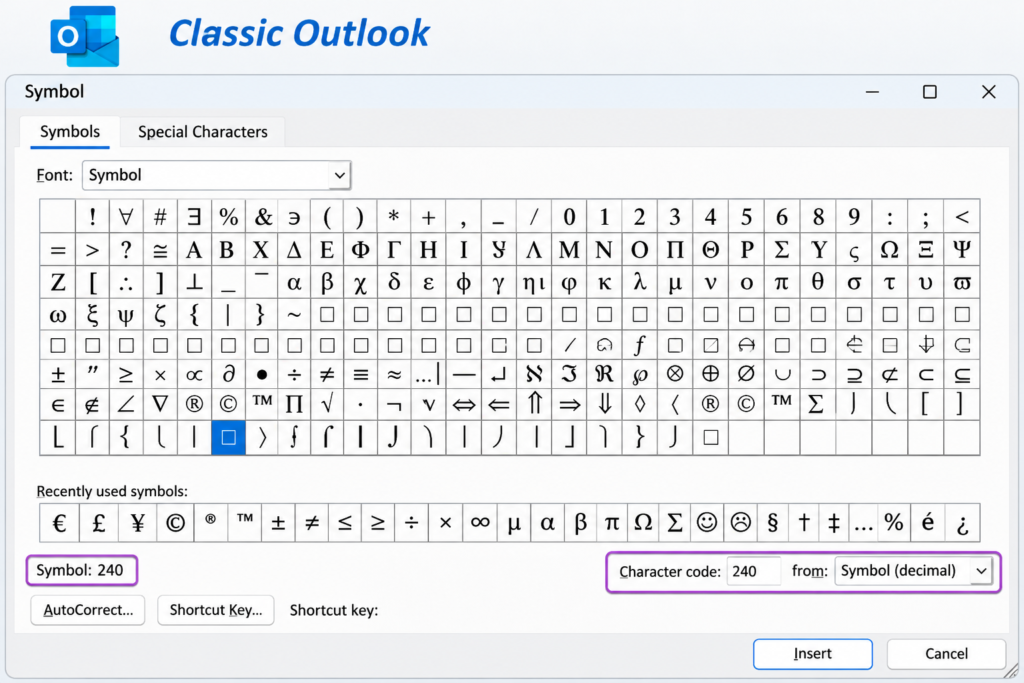
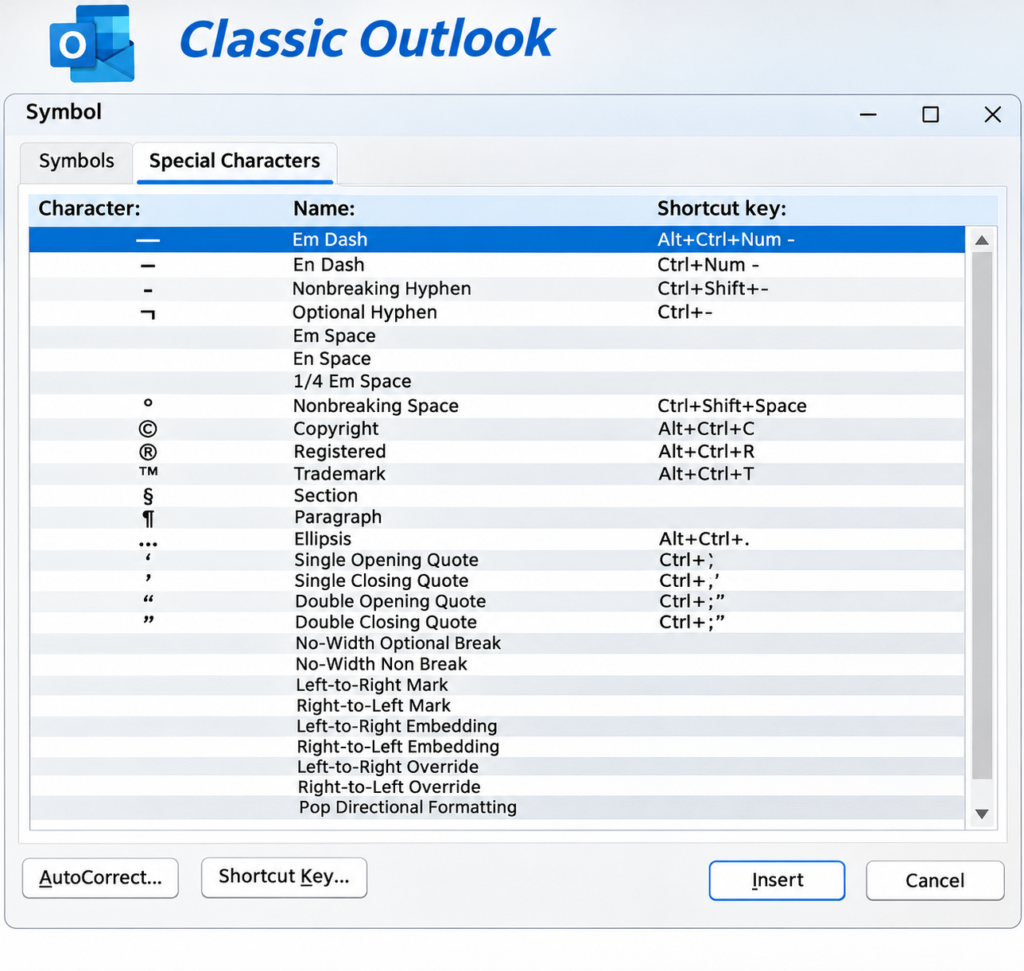
Classic Outlook offers a traditional Symbol dialog. It includes font selection, Unicode character codes, symbol subsets, and a separate Special Characters tab. During my testing,
Capability
New Outlook
Classic Outlook
Common symbols, currency, and accented letters
Yes
Yes
Windows character picker
Yes, on Windows
Yes, on Windows
Font selection in Symbol dialog
Not shown in new library
Yes
Unicode character code field
Not shown in new library
Yes
Browse symbol subsets
Not shown in new library
Yes
Separate Special Characters tab
Not shown in new library
Yes
What Is Still Missing Compared with Classic Outlook?
The main difference is the selection controls, not necessarily which characters can be inserted. Classic Outlook includes a dedicated Special Characters tab with items such as em dashes, en dashes, and nonbreaking spaces.
Those advanced controls were not visible in the New Outlook library I tested. However, the Windows picker provides access to many more characters. Before assuming a character is unavailable, try Windows key + .
Microsoft is rolling out this capability in phases. According to Microsoft 365 Message Center MC1479513, the schedule is:
Release
Expected timeline
Targeted Release (Worldwide)
Mid-October to early November 2026
General Availability (Worldwide)
Late November to late December 2026
GCC, GCC High, and DoD
Late November to late December 2026
The rollout covers New Outlook for Windows and Outlook on the web, with no administrator action required. If you don’t have the Symbols command yet, continue using the Windows character picker in the meantime.