Streaming live on LinkedIn is one of the best ways to share your message, build your brand, and connect with your audience in real time. If you’re already using Microsoft Teams, you can take it a step further by integrating it with LinkedIn Live—no need for fancy third-party tools.
In this blog post, I’ll walk you through exactly how to set up and go live from Microsoft Teams to LinkedIn. We’ll cover everything from the one-time setup to day-of event steps.
Quick Summary: Steps at a Glance for LinkedIn Live from Microsoft Teams
Here’s what you need to do—summarized before we get into the details:
Preparation: Let’s Set Things Up Before the Big Day
Enable Live Feed in Teams This is a one-time setup. If you’re in an organization, your IT Admin needs to turn this on. For solo users with a Business Standard license, confirm this setting is enabled in the Teams Admin Center.
Create a Calendar Event in Teams Schedule your live event using the Teams Calendar (not Outlook).
Create an Event on LinkedIn Set up the public-facing event that your audience will join on LinkedIn.
On Event Day: Time to Go Live
Add the Streaming App in Teams About 15 minutes before the event, join your Teams meeting and add the Custom Streaming app.
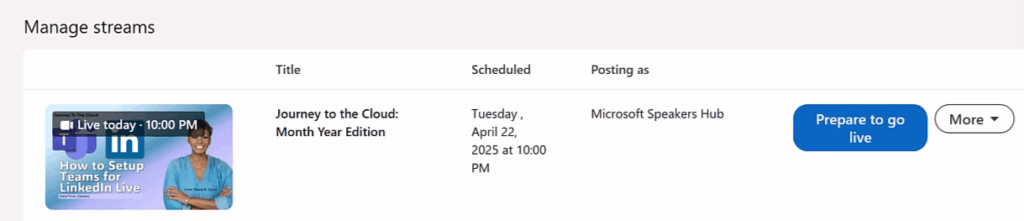
Get the Stream URL and Stream Key from LinkedIn From your LinkedIn Event page, click “Prepare to Go Live” and grab the necessary stream details.
Paste into Teams, Then Press Go Live on LinkedIn Enter the stream URL and key in Teams, go back to LinkedIn, and click “Go Live.” You’re live!
Overview: Teams and LinkedIn Live Integration
This process does require some switching between Teams and LinkedIn, but once you’ve done it once, it’s easy to repeat. In this walkthrough, I’ll guide you through each step in the correct order and include a few tips I’ve picked up along the way.
Scroll to Audio & Video, turn Live Streaming to On
Save your changes
If you’re part of an organization, ask your IT Administrator to handle this. If you’re a solo user like me with a Business Standard license, you’ll need to check if it’s already enabled.
Feel free to watch this video for the remaining steps.
Step 1: Create a Meeting in Microsoft Teams
Create your event in the Teams Calendar, not Outlook:
Add an event title (e.g., Journey to the Cloud: May 2025 Edition)
Make sure the Teams Meeting toggle is turned on
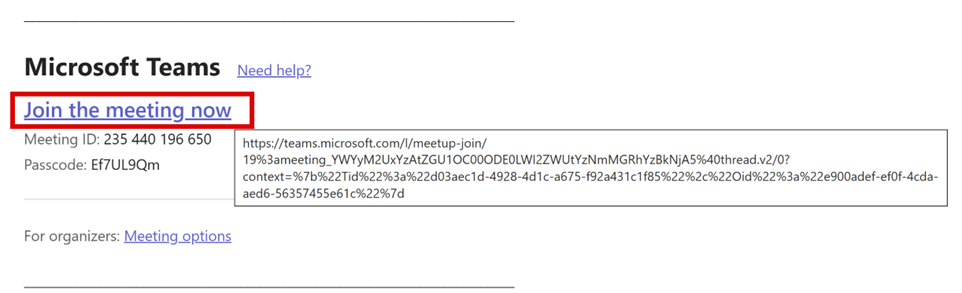
Invite presenters or share the Join Meeting Now link in your LinkedIn group chat
Include a disclaimer if desired: You are joining as a presenter or panelist for the [Journey To The Cloud] event, which is being broadcast as a LinkedIn Live Event. Please note that this session is being recorded and may be replayed or redistributed on LinkedIn and other social media platforms.
Press Send.
Reopen your Teams event.
You can copy the Join the meeting now link to share with others.
Apply any Meeting Options settings, such as adding a co-organizer, automatic record and transcribe, etc. Watch the video where I review the settings.
Note: You can not add the Custom Stream App to your event at this time. We will discuss it in detail later.
Step 2: Set Up the Event on LinkedIn
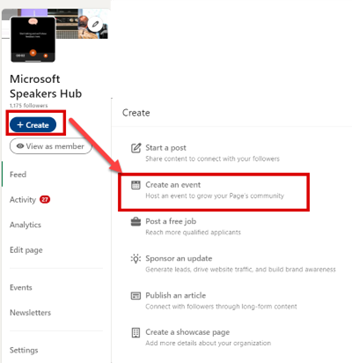
When you create an Event, you will automatically create an associated LinkedIn Post. Let complete the steps below.
Go to your LinkedIn Profile or Group Profile and click Events from the left navigation.
Note: You must have Admin rights. Contact one of the group’s Founders for access.
Upload an event image according to LinkedIn size specifications and choose Online Event
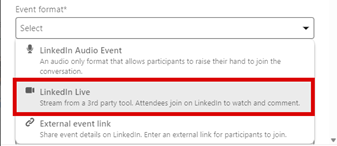
Format: Select LinkedIn Live
LinkedIn Audio: Is audio only. There is no replay available for this format.
LinkedIn Live: Most popular format and allows you to stream to 3rd party applications like Microsoft Teams.
External Event Link: Allows users to invite participants to a private event by posting the external link.
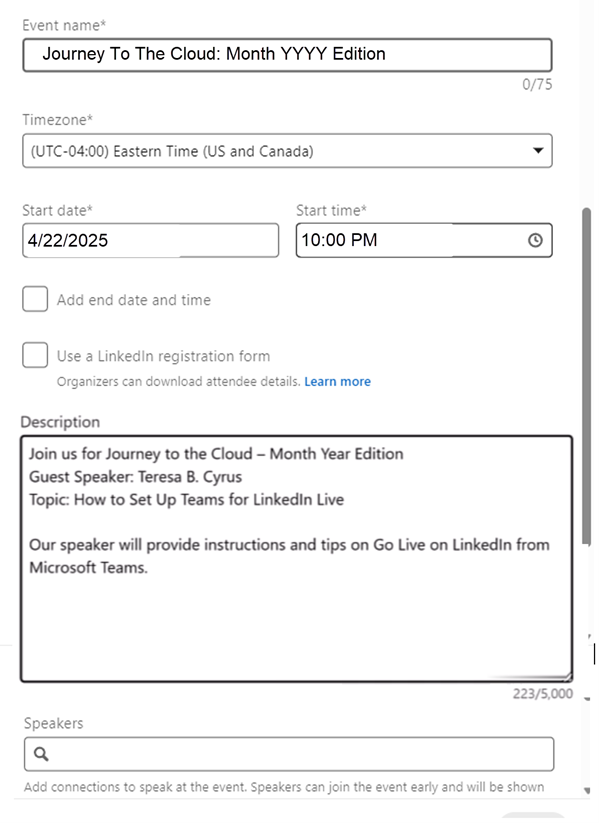
Add event details like name, date, time (align to your time zone), and description
Deselect End Time and the LinkedIn registration form
Use a LinkedIn registration form, if you are building an email list, here is a great way to capture their details.
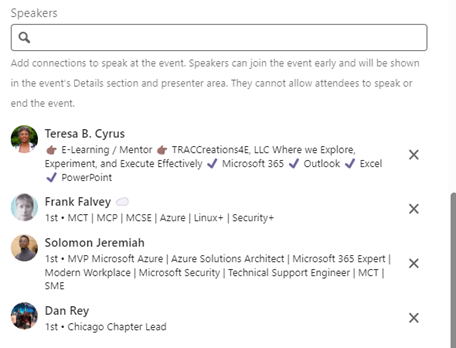
Add speakers including yourself and the group’s founding members. (Note: The speakers must be 1st-degree connections instead of followers)
Click Next to publish the event—it also creates a LinkedIn post
In the post, you can repeat the same details from the event. It is optional to include LinkedIn connections and followers with the use of @mention (@Dan Rey) or hashtags (#mvpbuzz) to promote this event.
Press Post. Your post and event details are shared publicly on LinkedIn feed.
Best Practices
Promote your event 2–3 weeks in advance
Tag 10+ connections with @mentions
Post reminders 7 and 2 days before the event for visibility across time zones
Step 3: Event Day Preparation for LinkedIn Live from Microsoft Teams
Before you go live, here’s how to prepare:
Optional: Run an internet speed test (aim for 10 Mbps upload speed)
Join your Teams meeting 30–45 minutes early
Have a co-organizer on standby to help manage the stream and tech
Enable Record this event in Teams. Note: You are unable to download or record the event from LinkedIn.
Add the Streaming App in Teams
Note: About 15 minutes before your live event:
Open your scheduled Teams meeting
Click the + Apps button
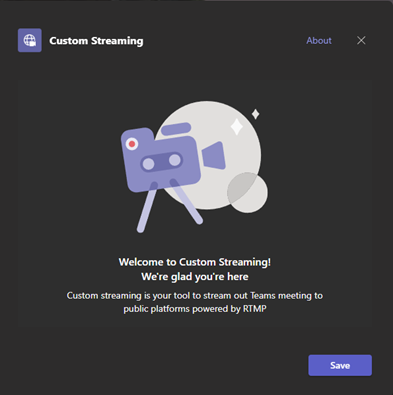
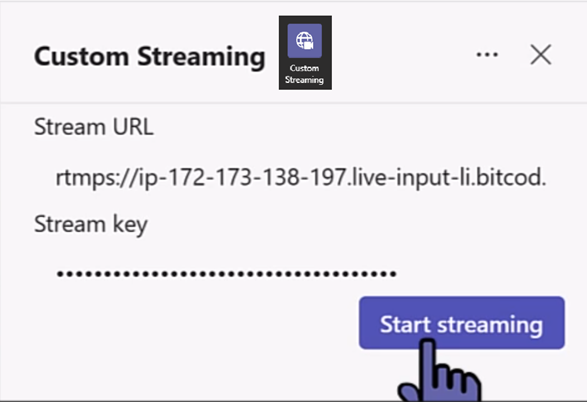
Search for Custom Streaming and add it
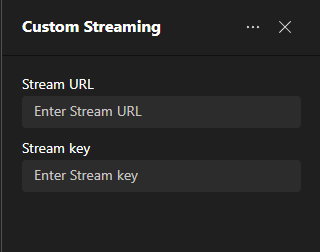
Leave the app open—it will copy and paste a Stream URL and Key from LinkedIn
15 minutes before the start time, the Prepare to Go Live button will turn from grey to blue
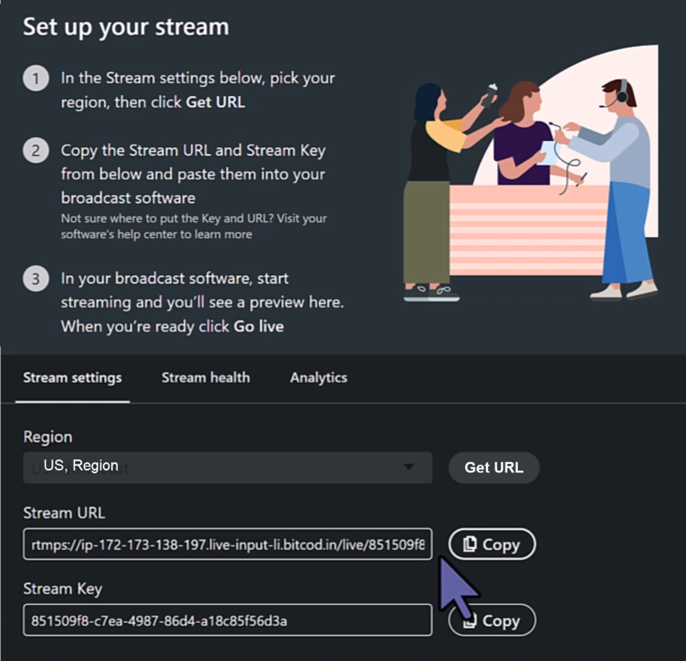
Under Stream Settings, select your Region where the event is being held and then click on Get URL
Next, copy and paste the Stream URL and Stream Key in Microsoft Teams Custom Streaming app
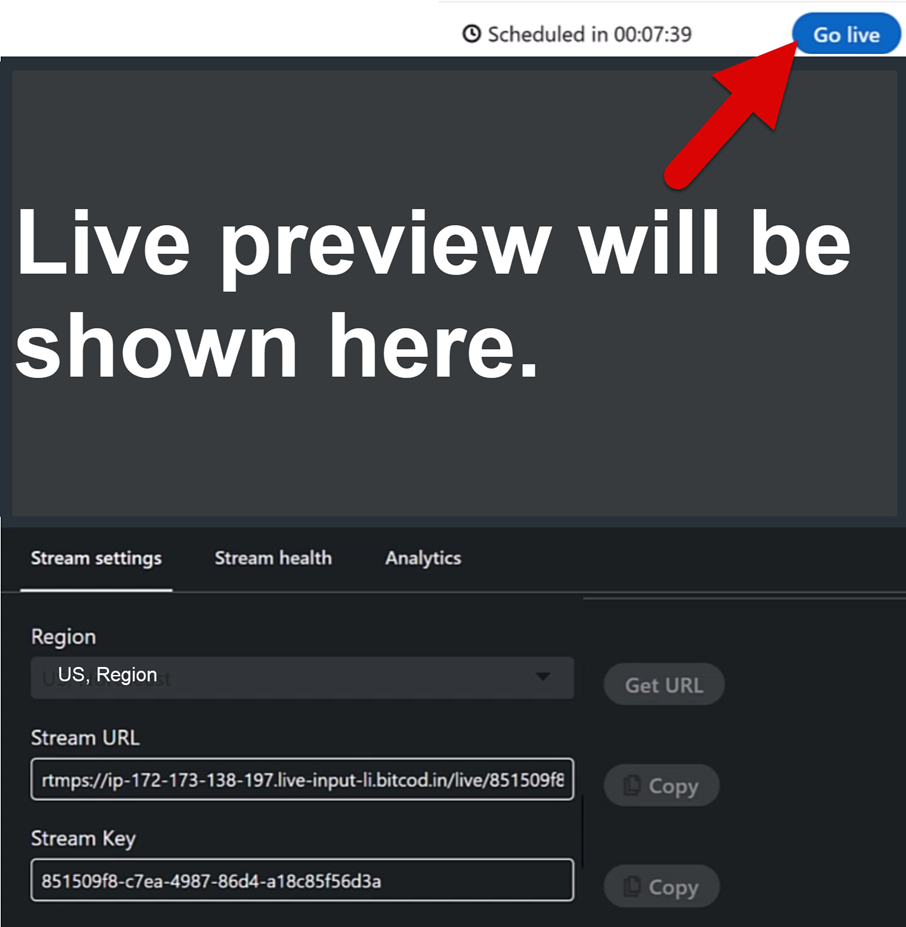
Keep this page open, you will return to it to press Go Live and End Stream.
Step 4: Go Live on Linkedin from Microsoft Teams!
Once your stream key is in Teams, press Start streaming. Note: You are not live until you press Go Live in LinkedIn.
Remember to turn on Teams Recording.
Return to LinkedIn, press Go Live
That’s it—you’re officially streaming from Microsoft Teams to LinkedIn Live!
To End Streaming Your Event
Return to LinkedIn Event Manage Page
Press the red button, End Stream. Note: The Go Live button changes to End Stream.
Stop recording in Teams
Additional Tips
On event day, I would suggest having the co-organizer to manage LinkedIn. For example:
The Co-organizer opens LinkedIn’s Event Manager, provides the Organizer with the Streaming Key & URL by posting it in the Team’s meeting chat, and ends the LinkedIn streaming
The Organizer manages the activities in Teams, such as starting and ending Teams recording, pasting the Streaming URL & Key, and starting streaming in Teams custom streaming app.
These activities may feel like it is overwhelming, but after a few test runs, it is a breeze.