
If Microsoft Teams is stuck on the loading screen after a latest update, your first reaction may be to blame your computer, internet connection, or Teams profile.
That was me.
I spent about an hour trying to fix Microsoft Teams stuck looping the loading screen after it partially loaded with this message:
“We’ve run into an issue. Check your internet connection and then try restarting Teams.”
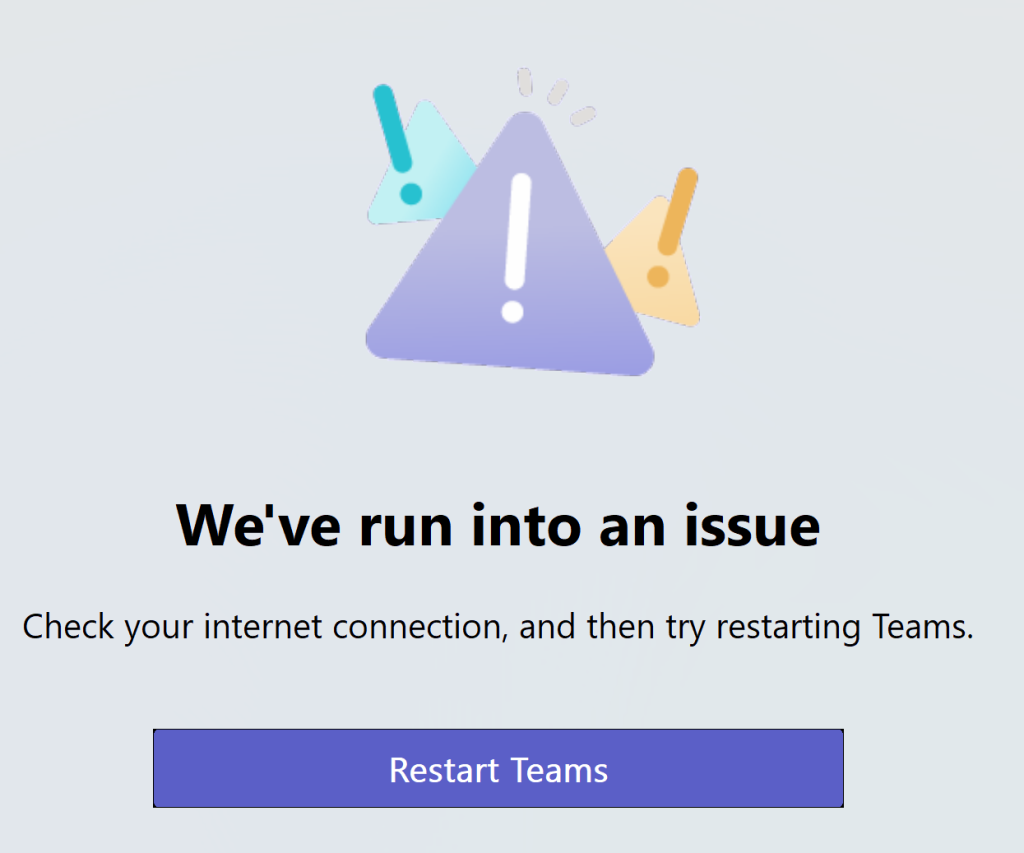
So, I went down the troubleshooting rabbit hole.
- I repaired the app.
- I deleted profile folders.
- I uninstalled and reinstalled Microsoft Teams.
None of that fixed it.
Stop the Loop in Microsoft Teams
I tried the “end task” in the Task Manager but the application kept disappearing. The easiest way to close Teams looping window is through the Windows 11 Settings.
- In the search bar, type Settings.
- Navigate to Apps > Installed Apps > Microsoft Teams > Terminate
- Note: Terminate will close the Teams looping window only.
Then do nothing.
That sounds wrong, but it may be the correct move when the issue is not on your device. It’s on Microsoft’s back-in.
Why This May Not Be Your Computer
Microsoft reported a Teams service issue where some users may get stuck in a crash loop when starting Microsoft Teams.
The issue is listed as:
Microsoft Admin Health Service Notice: Some users may get stuck in a crash loop upon startup of the Microsoft Teams service
Issue ID: TM1301921
Affected services: Microsoft Teams
Status: Service degradation
Issue type: Incident
Start time: May 5, 2026, 10:40 PM EDT
User impact: Users may get stuck in a crash loop upon startup of the Microsoft Teams service.
Scope of impact: Some users attempting to start the Microsoft Teams service may get stuck in a crash loop. This information may be updated as our investigation continues.
Current status: May 6, 2026, 12:24 AM EDT
Our review of the service health telemetry and recent service updates has led us to suspect that a recent standard service update contains a code issue and is resulting in impact. We’re in the process of reverting a portion service to its most previously stable version, as these actions will help validate our suspected theories on the underlying cause of impact and subsequently guide our troubleshooting actions.
Next update by: Wednesday, May 6, 2026, at 6:30 AM
What You Should Do
Do not uninstall and reinstall Teams if the issue continues.
Instead:
- Terminate Microsoft Teams from Windows Settings. See instructions above.
- Check Microsoft 365 Service Health, if you have admin access.
- Wait for Microsoft’s next update if the incident applies to your tenant.
- Avoid deleting more files unless Microsoft confirms a local workaround.
Sometimes the best fix is knowing when to stop troubleshooting.