
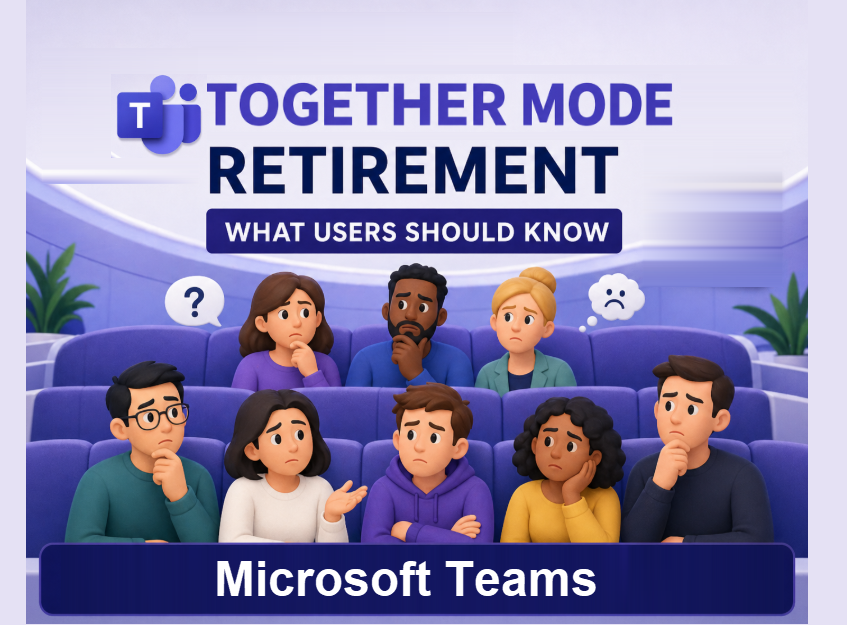
Microsoft Teams Together Mode was introduced in July 2020, during the height of remote work, as a way to make virtual meetings feel more connected. Instead of placing every participant in a separate square, Together Mode used AI segmentation to place people into a shared background. The result made it look like everyone was sitting in the same room.
The goal was simple: make virtual meetings feel less disconnected.
Microsoft Teams Together Mode view and custom scenes are listed for retirement in June 2026. That gives the feature about a six-year run inside Teams.
For a feature that became so recognizable during the remote-work era, that feels surprisingly short.
Why Is Microsoft Teams Together Mode Retirement Happening?
Microsoft has not provided a detailed reason for retiring Together Mode view and custom scenes.
The practical answer is that some features eventually get removed when they are not heavily used, no longer fit the product direction, or are replaced by newer meeting experiences.
Together Mode may have been a nice-to-have feature for many users instead of a daily meeting tool. Custom scenes may have also had limited use in many organizations. Another possibility is that the newer Microsoft Teams experience may be moving in a different direction for meeting layouts, branded visuals, or future AI-powered meeting options.
Could Copilot or another Teams feature eventually provide a better alternative? Maybe. But for now, Microsoft has only listed the retirement. There is no direct replacement that gives users the same shared-room view.
Who Is Affected by the Microsoft Teams Together Mode Retirement?
The Microsoft Teams Together Mode retirement affects Teams users across commercial and government cloud environments.
The retirement is expected to start in early June 2026 and complete by the end of June 2026.
Affected environments include:
- Worldwide
- GCC
- GCC High
- DoD
What Should Organizations Update?
Before the retirement date, review any content, process, or training material that mentions Together Mode.
Check these areas:
- Notify meeting organizers and users who regularly use Together Mode.
- Update internal documentation or training materials that reference Together Mode.
- Recommend alternative meeting layouts, such as Gallery, Large Gallery, Pin, or Spotlight.
- Review screenshots in user guides, onboarding materials, and training decks.
- Prepare help desk staff to answer questions about the removal of Together Mode.
- If your organization uses branded meeting visuals, deploy approved background images through the Teams admin center.
For Admins
- There is no admin policy or setting available to retain or re-enable Together Mode after retirement.
That means admins should focus on communication, updated documentation, and approved alternatives instead of looking for a setting to preserve the feature.
What Can Users Use Instead?
- Teams meetings still include other layout options, but they do not provide the same shared-room experience as Together Mode.
Users may need to rely more on:
- Gallery view
- Large Gallery view
- Pin
- Spotlight
- Speaker-focused layouts
- Content-sharing layouts
- Meeting organizer controls
- Organization-approved background images
These options can still support professional meetings, but they will not recreate the same visual experience as Together Mode.
If this information was helpful, the Microsoft 365 Retired Features category includes more posts about retired features, upcoming changes, and what they mean for users.
Final Thoughts
For some users, Microsoft Teams Together Mode view and custom scenes were just another meeting option. For others, they made virtual meetings feel a little more connected.
Together Mode was also great for the final meeting photo op.
If your organization still references Together Mode, now is the time to review your materials and update your guidance.
Do not wait until users are confused during a meeting. Prepare now and help users understand which Teams meeting views they can use next.
Before You Go
Need help explaining Microsoft Teams or Microsoft 365 changes to your users?
Visit my Services page to explore Microsoft 365 training options:
https://traccreations4e.com/services/

