The Graphics button in New Outlook gives you a way to add visual content directly inside your email message.
You can insert:
- Emojis – quick and expressive
- Stock images – professional images from Microsoft’s image library
- Stickers – fun graphics for casual messages
- Searchable graphics – find visuals by keyword or category
All graphics are inserted inline in the email body, not as separate attachments.
This is helpful for team updates, announcements, reminders, and casual internal messages. But let’s be clear: this new button does not replace all the graphic tools from Classic Outlook.
New Outlook comes with new workflows, and this is one of them.
Where You'll Find the Graphics Button in New Outlook
You’ll see the Graphics button when you:
- Compose a new email
- Reply to a message
- Forward an email
It appears in the formatting toolbar of the New Outlook experience.
This feature is available in New Outlook and Outlook on the web, not Classic Outlook.
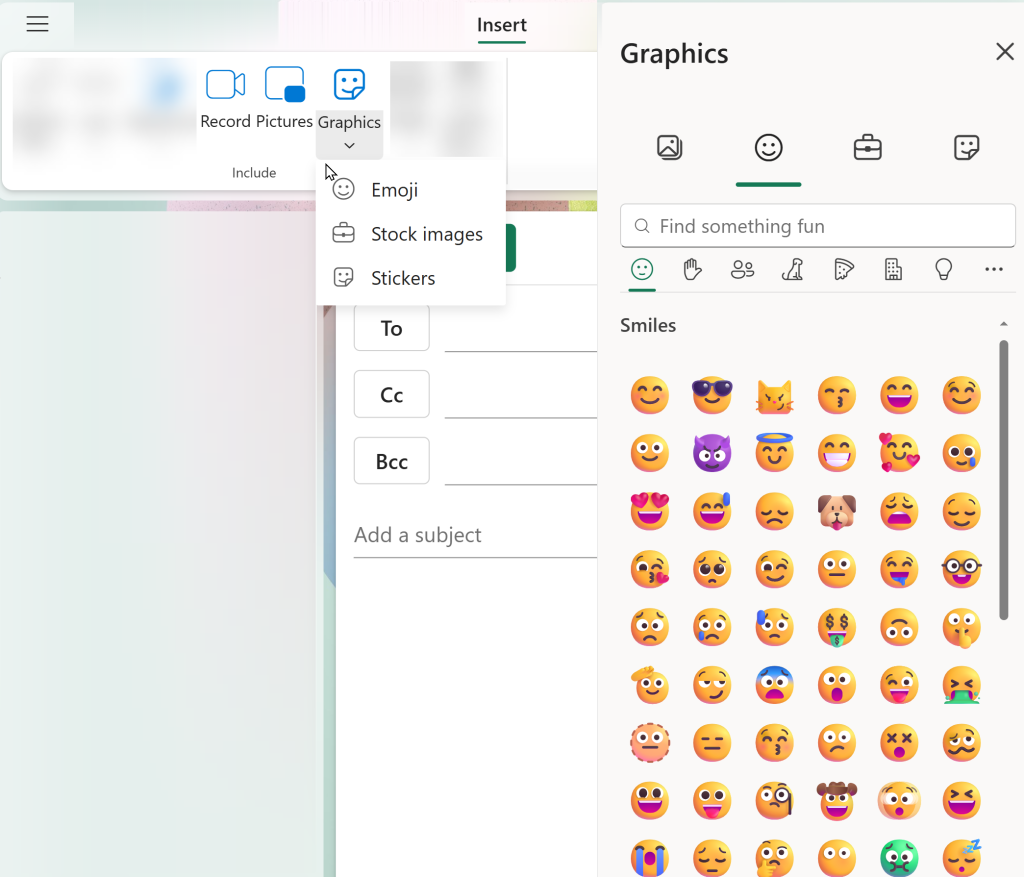
Tip: For emojis only, you can also use the Windows emoji shortcut: Windows key + . That opens the Windows emoji picker. Stock images and stickers are part of the newer Graphics experience in Outlook.
When the Graphics Button Is Helpful
Before this update, adding visuals in Classic Outlook could feel scattered.
You had to know where to find pictures, online images, or other insert tools. Beginner users may not always know where to look.
The Graphics button makes the process more direct. You can stay inside the email, search for a visual, and insert it into the message body.
This works well when you want to:
- Add a visual header to a team update
- Make an internal reminder more noticeable
- Add a small emoji to soften a short message
- Use a stock image for a training announcement
- Add a sticker to a casual team celebration
- Create a simple newsletter-style message
For business emails, use good judgment.
A stock image may work well for a training announcement. A sticker may work well for a casual team celebration. But a formal client email probably does not need playful graphics.
The key is to use graphics with purpose. The visual should support the message, not take over the message.
Graphics Options in New Outlook: What's Supported
With the new Graphics experience, Microsoft has reorganized how images are added in New Outlook.
Pictures from Your PC
Path: Insert > Pictures > This Device
This option lets you upload images saved on your computer directly into the email body.
Use this when you already have the image file, such as:
- A company logo
- A screenshot
- A flyer image
- A branded graphic
- A training image
This is still separate from the Graphics button.
Online Pictures
Status: Supported
Change: This option has moved under the Graphics button under Stock Images. So, if you are looking for online images in New Outlook, check the Graphics button first.
Honorable Mention: Record and Embed a Message
New Outlook also includes another visual communication option worth mentioning.
You can record and embed a message directly into an email. This is helpful when you want to explain something quickly without typing a long message.
Use this when you want to:
- Add a personal explanation
- Walk someone through a quick update
- Provide context that is easier to say than write
- Make a message feel more direct and human
This is not part of the Graphics button, but it fits the same idea: New Outlook is adding more ways to communicate visually inside an email.
For more details, watch my video:
https://youtu.be/579OLWaSRZU?si=W24fD0AW5PCIdWio
Classic Outlook Illustration Options That Are Not Supported in New Outlook
If you’re coming from Classic Outlook, this is where you’ll notice the biggest differences.
The following illustration and formatting tools are currently unsupported in New Outlook email compose:
- Shapes – used for callouts, borders, arrows, and simple diagrams
- Icons – the icon library available in other Microsoft 365 apps
- SmartArt – diagrams commonly used for layouts, processes, and visual explanations
- Charts – embedded chart objects for data visualization
- Screenshots – the built-in screenshot capture and insert tool
- Text Box – standalone text containers
- WordArt – decorative text effects
If you rely on these tools, you will need to use Classic Outlook or create the content in another app, such as Word or PowerPoint, and insert the finished design as an image.
That is the real limitation.
The Graphics button gives you simple visuals. It does not give you the full illustration toolkit from Classic Outlook.
My Final Thoughts
The Graphics button in New Outlook is a helpful update for users who want to add simple visuals to email messages.
It gives you quick access to emojis, stock images, and stickers directly inside the message body. Online Pictures has also moved under this newer Graphics experience.
Before You Go
Need help learning New Outlook without getting lost in all the changes?
Visit my Services page to explore practical Microsoft 365 training options for business users, teams, and organizations.
Now, go and work your magic.