New Outlook now supports Mailbox Account Descriptions—a new feature that lets you rename your inbox for privacy, clarity, and faster navigation. Perfect for trainers, consultants, and anyone managing multiple accounts.
Note: This feature is only available in the redesigned Outlook experience (commonly referred to as “New Outlook”). If you’re still using Classic Outlook, these steps do not apply.
Let’s use TRACCreations4e’s 4E’s Methodology: Explore, Experiment, and Execute Effectively to understand why this feature matters—and how to start using it in your everyday Microsoft 365 workflows.
Explore the Inefficiencies: Why Email Account Labels Fall Short in Outlook
If you manage more than one mailbox in Outlook, you’ve likely seen your full email address listed in the folder pane. Not ideal when you’re screen-sharing, teaching a class, or juggling client work.
The problem?
- Your email address is visible, even when privacy is key
- Each inbox looks the same unless you manually keep track
- Client domains can appear in demos or recordings
- You waste time hunting for the right mailbox
If you’re a trainer, creator, or consultant, these aren’t just visual annoyances—they’re productivity blockers.
Experiment with Resources: Rename Mailbox Accounts and Organize with Color
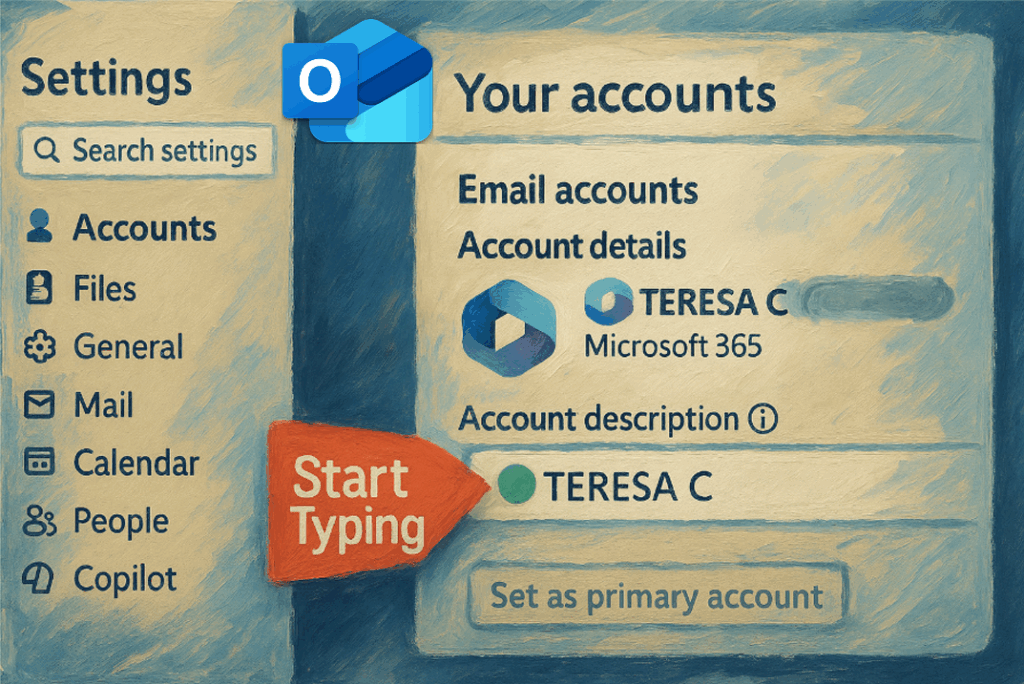
Microsoft just rolled out a solution: Account Description in Outlook.
This setting allows you to rename your mailbox accounts with labels that make more sense for your workflow. Here’s how you can use it:
- Increase privacy by replacing your email with “Main Account,” “Training Profile,” or even a fun emoji-enhanced label
- Organize smarter with account names like “Work,” “Personal,” or “Family”
- Protect confidentiality by replacing client domains with neutral names like “Client A” or “Website Admin”
- Boost visual navigation by adding emojis like 🌟📧📁 or colored icons—your eyes will thank you
💡 Bonus Tip: Use emoji shortcuts to customize account labels:
- Windows: Windows + , (comma)
- Mac: Command + , (comma)
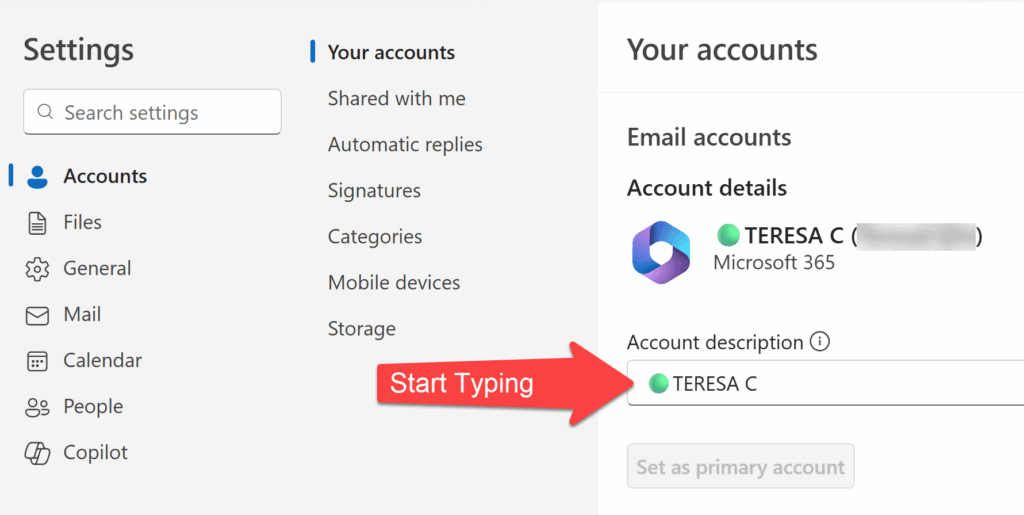
As someone managing multiple accounts and calendars, I personally added a green circle 🟢 to an account label that matches my calendar color-coding. This keeps me visually in sync across apps.
Use Color Cues to Improve Focus and Navigation
Color isn’t decoration—it’s function. Visual cues help your brain sort and retrieve information faster.
If you’re concerned about the number of accounts displayed in the left navigation pane, you can organize what’s visible by managing your Favorites. In New Outlook, you’re no longer limited to just folders—you can also add entire mailbox accounts, contacts, categories, and even Microsoft 365 Groups to your Favorites.
🎥 Want to see this in action?
Watch this video: Best Method to Master Outlook Favorites and Color Folders
Adding color to your Outlook interface helps:
- Separate personal and work accounts at a glance
- Reinforce calendar themes or labels you already use
- Reduce visual fatigue and decision-making friction
If you want to explore organizing your mailbox by color, start here:
What Mailbox Types Can and Can’t Be Renamed
While the Account Description feature is a helpful addition, it does come with limitations. You can only rename primary mailbox accounts—the ones directly connected to your Outlook profile.
You cannot rename:
- Shared mailboxes
- Alias accounts
- PST (Outlook Data File) accounts
These mailbox types will still appear with their default names in your folder list. If you’re working in a shared or delegated environment, it’s best to rely on folder color coding or category labels instead.
Execute with Confidence: How to Add or Edit Mailbox Account Descriptions in Outlook
To rename your mailbox in Outlook:
- Click the View tab in the top ribbon
- Select View Settings
- Choose Accounts
- Under Your Accounts, select the mailbox to update
- Click Manage
- Enter your new Account Description
- Save your changes
The folder pane now shows your custom label—no more default email addresses on display.
Effectively Reap the Benefits: The Long-Term Impact of Custom Mailbox Account Descriptions
Renaming your accounts is more than cosmetic—it’s part of a smarter inbox strategy. With this update, you can:
- Keep sensitive information out of public view
- Navigate faster using meaningful visual labels
- Create consistency across Outlook, Calendar, and Teams
- Simplify your workflow without relying on workarounds
This small tweak gives you more control over how you manage, present, and interact with your Outlook environment.
Before You Go
Want to organize your Outlook like a pro?
Our hands-on training helps you manage digital workflows with confidence—from features like Account Description to automation, calendaring, and inbox structure.
👉🏽 Explore Our Services
🪄 Now go ahead—rename your inbox and Work Your Magic!