You accepted forwarded Outlook meetings. Everything appeared to work correctly. The meeting was added to your calendar, and you planned to attend.
Then the meeting organizer updated the meeting details and sent an update. The original attendees received the updated invitation, but you did not.
So what happened?
Why Forwarded Outlook Meetings May Miss Updates
Accepting a forwarded meeting invitation does not automatically make you an attendee on the organizer’s meeting.
When the organizer sends updates, Outlook only sends those updates to people listed on the official attendee list. If you received the invitation through a forwarded meeting request, you may not receive future updates, cancellations, or meeting changes.
How Forwarded Outlook Meetings Work
Let’s look at a common scenario.
- The meeting organizer creates and sends a meeting invitation.
- An attendee receives the invitation.
- That attendee forwards the invitation to another person.
- The forwarded recipient accepts the meeting invitation.
- The organizer later updates the meeting and sends an update.
At this point, the original attendees receive the update.
However, the forwarded recipient may not receive anything.
Why?
Because the organizer never added that person to the meeting attendee list. This is one of the most common reasons users report missing Outlook meeting updates after accepting a forwarded invitation.
From the organizer’s perspective, the forwarded recipient is not an attendee. They simply received a copy of the invitation from someone else. Even if the forwarded recipient accepts the invitation, that response is not automatically added to the organizer’s attendee list.
What Information Can Be Missed?
When a forwarded recipient is not on the attendee list, they may miss important meeting changes, including:
- Updated meeting times
- Location changes
- Agenda updates
- Meeting cancellations
- Microsoft Teams meeting link updates
- Additional meeting information from the organizer
This can create confusion, especially for recurring meetings or meetings that change frequently.
How to Confirm Forwarded Outlook Meetings Issue
Ask the meeting organizer to open the meeting and review the attendee list.
If your name does not appear in the attendee list, you will not receive future updates from the organizer.
This is the first thing to check when someone says:
“I accepted the meeting, but I never received the update.”
How to Fix It
The best solutions are simple.
Option 1: The organizer should add the forwarded recipient directly to the meeting invitation and send an update. Note: I have noticed that New Outlook and Outlook Web automatically added the forwarded person as an optional attendee. I would move this person to the required attendee field. (Test it.)
Once the person is added as an official attendee:
- Future updates are delivered automatically.
- Meeting cancellations are received.
- Teams meeting changes are received.
- Responses can be tracked by the organizer.
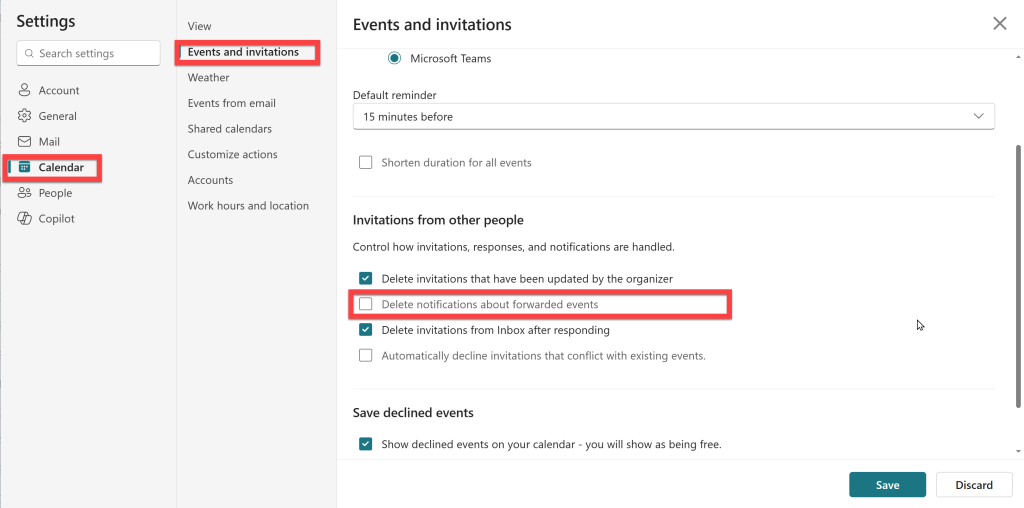
Yes, the organizer is informed of forwarded event to others. If the setting is to delete the notification about forwarded events, the organizer may miss it. Especially if the attendee list is large.
Again, the forwarded invite will appear in the Optional attendee field.
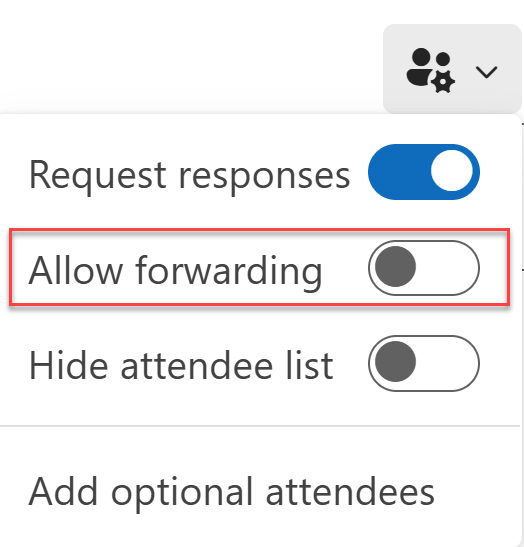
The organizer can disallow forwarding of meeting events. This way, the organizer controls who attends the meeting by sending an invitation to the appropriate people.
The colleagues must contact the organizer to invite others.
By the way, you can not set Disallow forwarding as the default. It has been on my wish list for years.
What If Updates Have Already Been Missed?
If a meeting has already been updated several times, the organizer should:
- Open the meeting.
- Add the missing attendee.
- Send an update to the newly added attendee or all attendees.
This ensures everyone has the latest meeting information going forward.
Which Outlook Apps Are Affected by Forwarded Outlook Meetings?
The same behavior can occur in:
- Classic Outlook
- New Outlook for Windows
- Outlook on the web
- Outlook for Mac
The behavior is tied to how Outlook and Exchange manage meeting attendees, not the Outlook app being used.
If a person is not listed as an attendee on the organizer’s meeting invitation, they may not receive future meeting updates regardless of which Outlook app they use.
Key Takeaway
If you accepted a forwarded Outlook meeting invitation and did not receive later updates, Outlook is likely working as designed.
Meeting updates are sent to attendees listed on the organizer’s meeting invitation. If you were added through a forwarded invitation, you may not receive future updates, cancellations, Teams meeting changes, or other meeting notifications.
For important meetings, do not rely on forwarded meeting invitations.
Instead, ask the organizer to add you directly to the meeting invitation. This ensures you receive future updates, cancellations, and meeting changes while allowing the organizer to track your response.
When troubleshooting missing meeting updates, the first thing to check is whether the recipient appears on the organizer’s attendee list.
Simply forwarding a meeting invitation is not the same as adding someone as an attendee.
If you frequently manage Outlook meetings and invitations, you may also find value in learning how to automate meeting responses using Copilot Calendar Instructions.