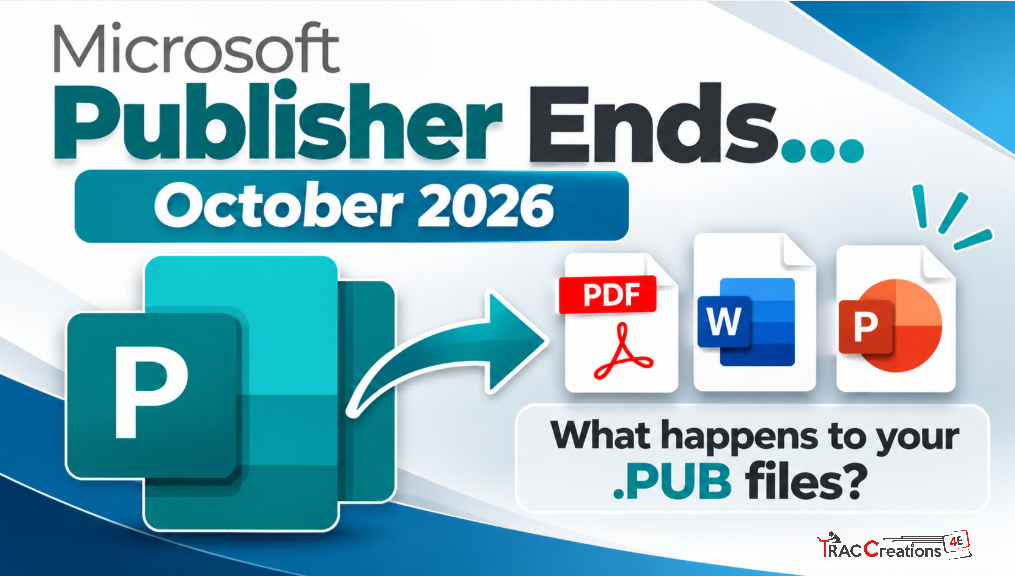
The Microsoft Publisher retirement is almost here. If you have years of Publisher files, you may be wondering what happens to those .pub files after October 2026.
The good news is that your files will not suddenly disappear.
The bigger issue is whether you will still have Microsoft Publisher available to open and edit them.
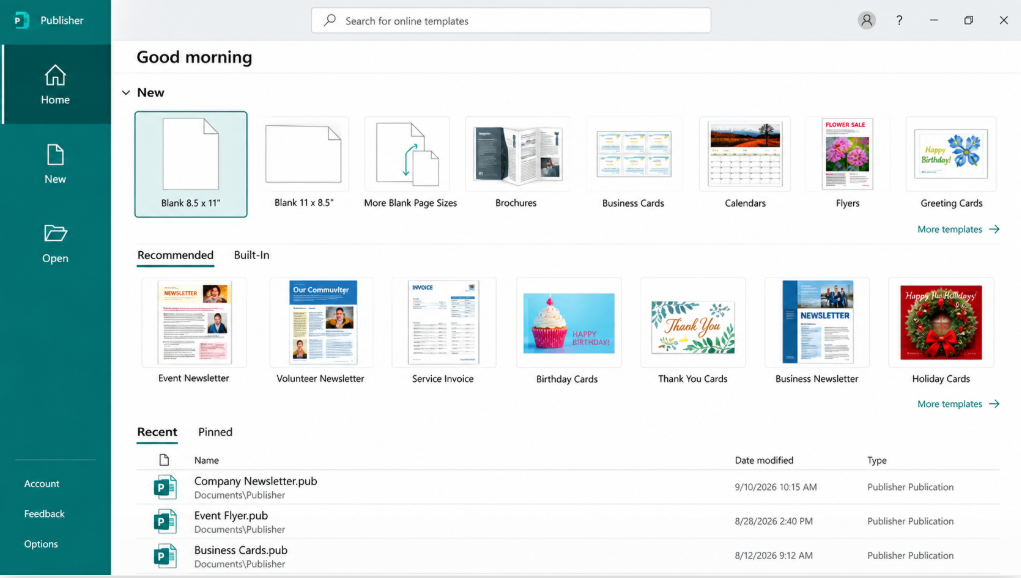
Microsoft Publisher Retirement: What Is Happening in October 2026?
Microsoft Publisher will reach the end of its life in October 2026, after about 35 years. Microsoft released Publisher 1.0 in September 1991. It was Microsoft’s first desktop publishing program, designed to make page layout and design accessible to everyday business users.
Microsoft first communicated the planned retirement to Microsoft 365 administrators on February 15, 2024, through Microsoft 365 Message Center post MC716267. Microsoft has continued to remind customers about the change as the retirement date approaches.
However, what happens in October depends on how you obtained Publisher.
| If You Use | What Happens |
|---|---|
| Publisher through a Microsoft 365 subscription | You can use Publisher until October 1, 2026. After that date, Microsoft 365 subscribers will no longer have access to Publisher and cannot use Publisher to open or edit .pub files. |
| Publisher purchased as a one-time purchase, such as Publisher 2021 | Microsoft calls this a perpetual version. Support ends October 13, 2026, but Microsoft says you can continue to install and use the application after that date. |
So, what does perpetual version mean?
It simply means that you bought the software once instead of paying for it through a Microsoft 365 subscription.
For example, if you purchased Publisher 2021 or an Office 2021 package that included Publisher, you may have a one-time purchase version.
Microsoft says those users can continue using Publisher after support ends. However, Microsoft will no longer support the product.
For that reason, I would consider the one-time purchase version a temporary bridge rather than a long-term solution.Microsoft first communicated the planned retirement to Microsoft 365 administrators on February 15, 2024, through Microsoft 365 Message Center post MC716267. Microsoft has continued to remind customers about the change as the retirement date approaches.
What Does the Microsoft Publisher Retirement Mean for Your .PUB Files?
Your Publisher files do not expire.
A .pub file stored on your computer, external drive, OneDrive, or SharePoint will remain there.
The concern is being able to open and edit the file in the future.
Microsoft recommends that Microsoft 365 users convert important Publisher documents before October 1, 2026.
Before converting everything, first decide what you actually need.
You may have old Publisher documents that only need to be saved for reference. Others may still be templates or documents you regularly update.
That difference matters when choosing what to do next.
Option 1: Convert Files You Only Need to Keep to PDF
If you only need to view, print, email, or archive a Publisher file, PDF is probably the simplest option.
In Publisher, you can save the publication as a PDF before Publisher is removed.
Microsoft also provides instructions for finding Publisher files and converting them to PDF or Word.
See full Microsoft Publisher retirement and conversion guidance
What If You Have Hundreds of Publisher Files?
Microsoft provides a PowerShell script that can convert multiple Publisher files to PDF.
PowerShell is an advanced-user or IT option.
If you have never used PowerShell, I would not recommend experimenting with an important collection of Publisher files just for this project. Ask someone familiar with PowerShell or your IT support person for assistance.
The Microsoft script also requires a working, licensed copy of Publisher. Therefore, Microsoft 365 users should handle a large conversion project before Publisher access ends.
Option 2: Recreate Simple Documents in Word or PowerPoint
Microsoft is not replacing Publisher with a new Microsoft application.
Instead, Microsoft recommends Word or PowerPoint, depending on what you are creating.
For example:
| Publisher Project | Microsoft Alternative |
|---|---|
| Flyers | Word or PowerPoint |
| Brochures | Word or PowerPoint |
| Posters, banners, and signs | PowerPoint |
| Certificates | Word or PowerPoint |
| Business cards | Word or PowerPoint |
| Invoices and forms | Word |
| Calendars | Word or PowerPoint |
| Envelopes and labels | Word |
| Letterhead | Word |
| Newsletters | Word |
| Programs | Word |
This may be a good option for simpler Publisher documents that you plan to continue updating.
However, Word and PowerPoint are not direct replacements for every Publisher feature.
Complex publications may require a page-layout application instead.
Option 3: Try Affinity for Publisher Files You Still Need to Edit
One alternative worth testing is Affinity.
Affinity combines professional page layout, graphic design, and photo-editing tools in one application. It is currently free for individuals.
More importantly for Publisher users, Affinity now provides an option for importing Microsoft Publisher .pub documents. Its Help Center includes specific guidance for importing Publisher files.
I would not convert your entire Publisher library without testing first.
Try several types of documents, including a simple flyer, a multi-page publication, and one of your more complicated templates.
Then check the fonts, pictures, spacing, text boxes, page sizes, and print results.
Keep the original .pub file even after converting it.
Option 4: Move Publisher Designs to Canva
If you already use Canva, you may want to move some Publisher designs into that environment.
One third-party option is DesignMarkz by Markzware.
DesignMarkz says it can convert Publisher and other design files into formats you can bring into Canva while preserving editable text, images, and layouts.
This may be useful if Canva is already part of your workflow.
However, this is a third-party conversion tool. Test important Publisher documents before relying on it for a large migration.
Option 5: Try LibreOffice Draw for Older Publisher Files
Another free option is LibreOffice.
LibreOffice Draw includes a Microsoft Publisher import filter.
However, LibreOffice’s current documentation specifically lists support for Microsoft Publisher 98–2010 files.
Therefore, I would consider LibreOffice primarily as another option for opening or recovering some older Publisher documents.
Do not assume every newer or complex Publisher file will convert correctly.
Option 6: Open Publisher Files in a Browser With Printicorn
A newer option is Printicorn.
Open Publisher files with Printicorn
Printicorn is designed specifically to open .pub files without Microsoft Publisher.
It currently allows users to open, edit, and export Publisher files from a web browser. The company says Publisher files are processed on the user’s computer rather than uploaded to its servers.
It can also scan a folder and convert multiple Publisher files to PDF or its own editable format.
However, Printicorn currently describes the service as a research preview.
For that reason, I would test it with copies of your Publisher files before using it for important documents.
What Should You Do Before the Microsoft Publisher Retirement?
To prepare for the Microsoft Publisher retirement, here is the approach I recommend:
- Find your Publisher files. Search your computer, external drives, OneDrive, and SharePoint for
.pubfiles. - Do not delete your original files. Keep the
.pubfiles even after converting them. - Convert archive-only documents to PDF.
- Identify the files you still edit. These need an editable replacement.
- Recreate simple files in Word or PowerPoint when that makes sense.
- Test Affinity, Canva with DesignMarkz, LibreOffice, or Printicorn for documents that need another solution.
- Check every converted document. Look closely at fonts, pictures, text wrapping, page size, and printing.
- If you have hundreds of files, get help early. Microsoft provides a PowerShell option, but it is intended for advanced users.
Which Publisher Alternative Should You Choose?
There is no single Publisher replacement that will work for everyone.
| Your Need | Option to Consider |
|---|---|
| Keep old documents for reference | |
| Convert many files before Publisher is removed | Microsoft PowerShell, for advanced users or IT |
| Simple documents that should remain in Microsoft 365 | Word |
| Flyers, posters, signs, and visual layouts | PowerPoint |
| Continue editing page-layout documents | Affinity |
| Move designs into Canva | Canva with DesignMarkz |
| Try opening some older Publisher files | LibreOffice Draw |
Open or convert .pub files without Publisher | Printicorn |
One Important Difference: Unsupported Does Not Mean the Same Thing as Unavailable
This is the part that is causing a lot of confusion.
If you receive Publisher through a Microsoft 365 subscription, access to Publisher ends October 1, 2026.
If you purchased Publisher as a one-time purchase, such as Publisher 2021, Microsoft support ends October 13, 2026. However, Microsoft says you can continue installing and using that version.
Either way, Publisher is no longer a product I would depend on for the future of important documents.
Keep your original .pub files. Create PDFs of documents you only need to preserve. Then decide which files truly need to remain editable.
Most importantly, do not wait until you need an old Publisher file to figure out how you are going to open it.
If this information was helpful, the Microsoft 365 Retired Features category includes more posts about retired features, upcoming changes, and what they mean for users.