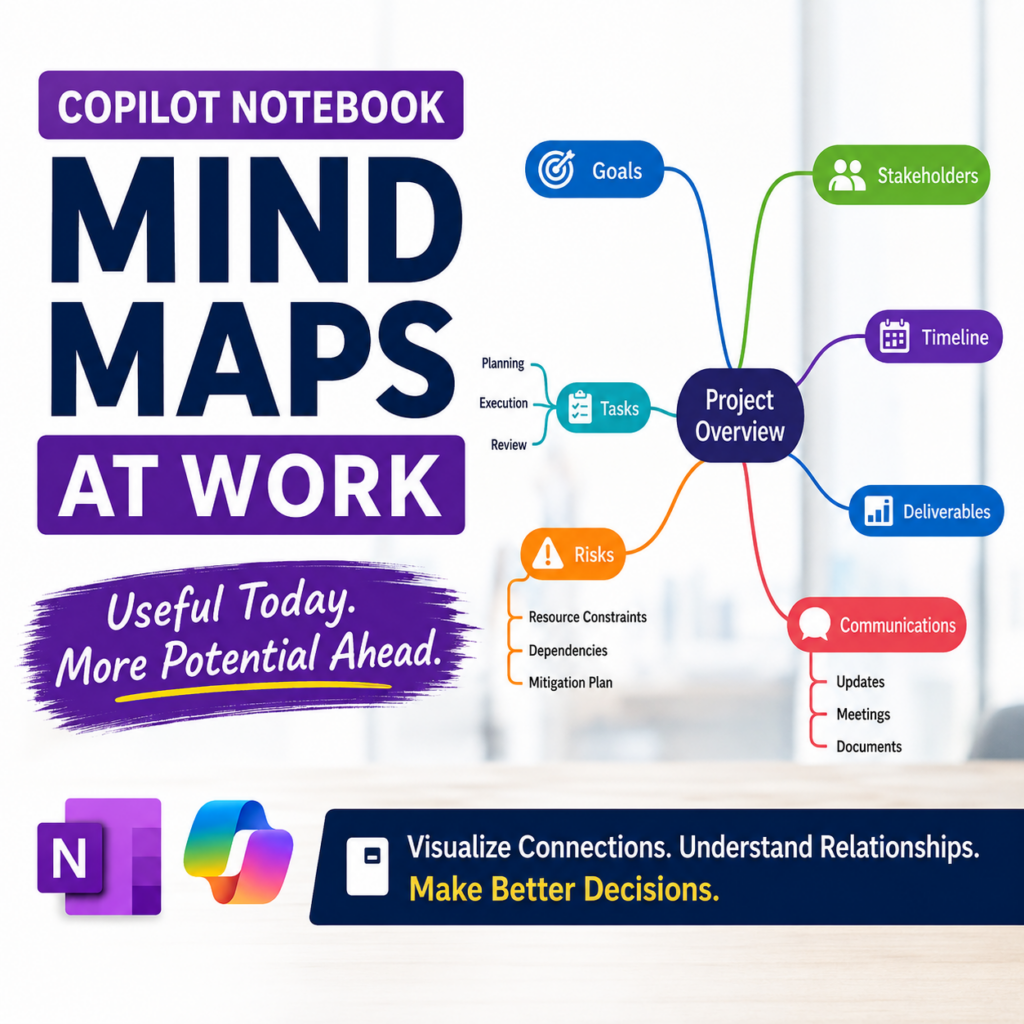
Copilot Notebook Mind Maps give you another way to understand the information you have collected in a Notebook.
Instead of reading every reference from beginning to end or asking Copilot a series of questions, you can generate a visual map showing key topics and how they relate.
For business users, that can be useful when a project has many moving parts.
Overall, I think Copilot Notebook Mind Maps are good for simple visual brainstorming, exploring relationships, and getting a high-level view of your Notebook sources. However, I also see much more potential for how Mind Maps could support workplace projects.
What Are Copilot Notebook Mind Maps?
A Mind Map takes information from the references in your Copilot Notebook and organizes key topics and relationships visually.
Microsoft describes the feature as an interactive way to explore the themes, concepts, and topics within your Notebook. You can explore connections, review quick summaries of individual nodes, and ask Copilot to explain a concept further.
A Mind Map is not simply another summary. It gives you a visual representation that you can export as an image of how Copilot interprets the relationships within your selected source collection.
For example, imagine a project Notebook containing project requirements, meeting notes, a timeline, stakeholder communications, risks, training plans, and process documentation.
The Mind Map can help you step away from individual documents and look at the project as a connected collection of information.
If you are still trying to understand where Copilot Notebook fits compared with OneNote, start with Copilot Notebook vs OneNote: Which Workspace Should You Use?
Who Has Access to Copilot Notebook Mind Maps?
For workplace users, Copilot Notebooks are available with Copilot Chat (Basic) and Microsoft 365 Copilot (Premium). Your organization must also provide the required SharePoint or OneDrive service plan.
Mind Maps are among the Copilot Notebook features available to Copilot Chat users, so you do not need Microsoft 365 Copilot Premium just to use a Mind Map.
Microsoft also makes Copilot Notebooks available with some Microsoft 365 consumer subscriptions. However, Microsoft currently states that Mind Maps are not available with Microsoft 365 Personal, Family, or Premium consumer plans.
Because Microsoft continues to roll out and update Copilot Notebook features, what you see may also depend on your organization’s environment and rollout status.
How to Access a Copilot Notebook Mind Map
You have two ways to get to your Copilot Notebook and its Mind Map.
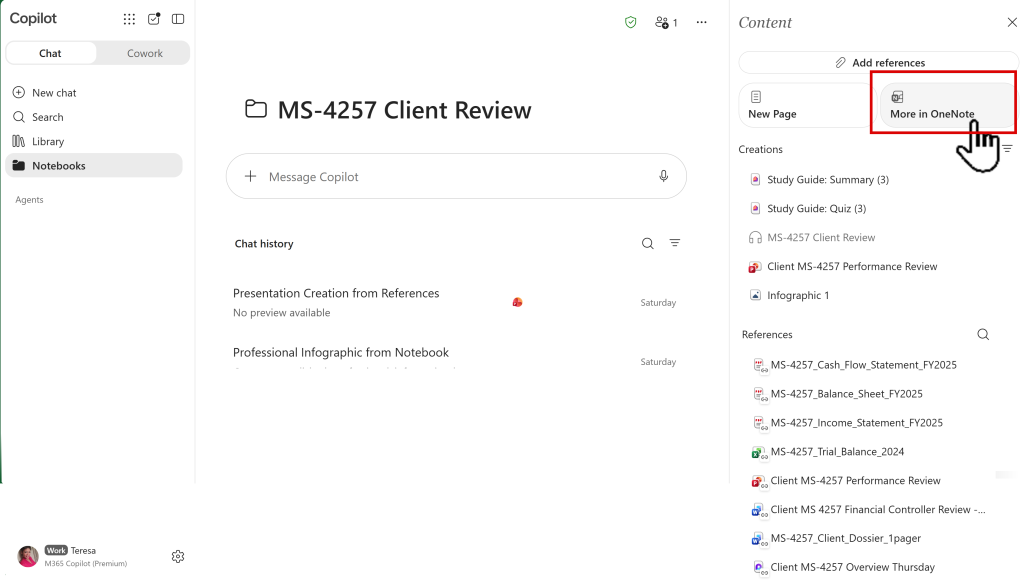
Method 1: Start From Microsoft 365 Copilot
- Open Copilot.
- Select Notebooks.
- Open your project Notebook.
- From the Notebook, select More in OneNote > Create
- Select Mind Map.
This method works well when you are already using Copilot and want to continue working within the Copilot experience.
Method 2: Start Directly From OneNote
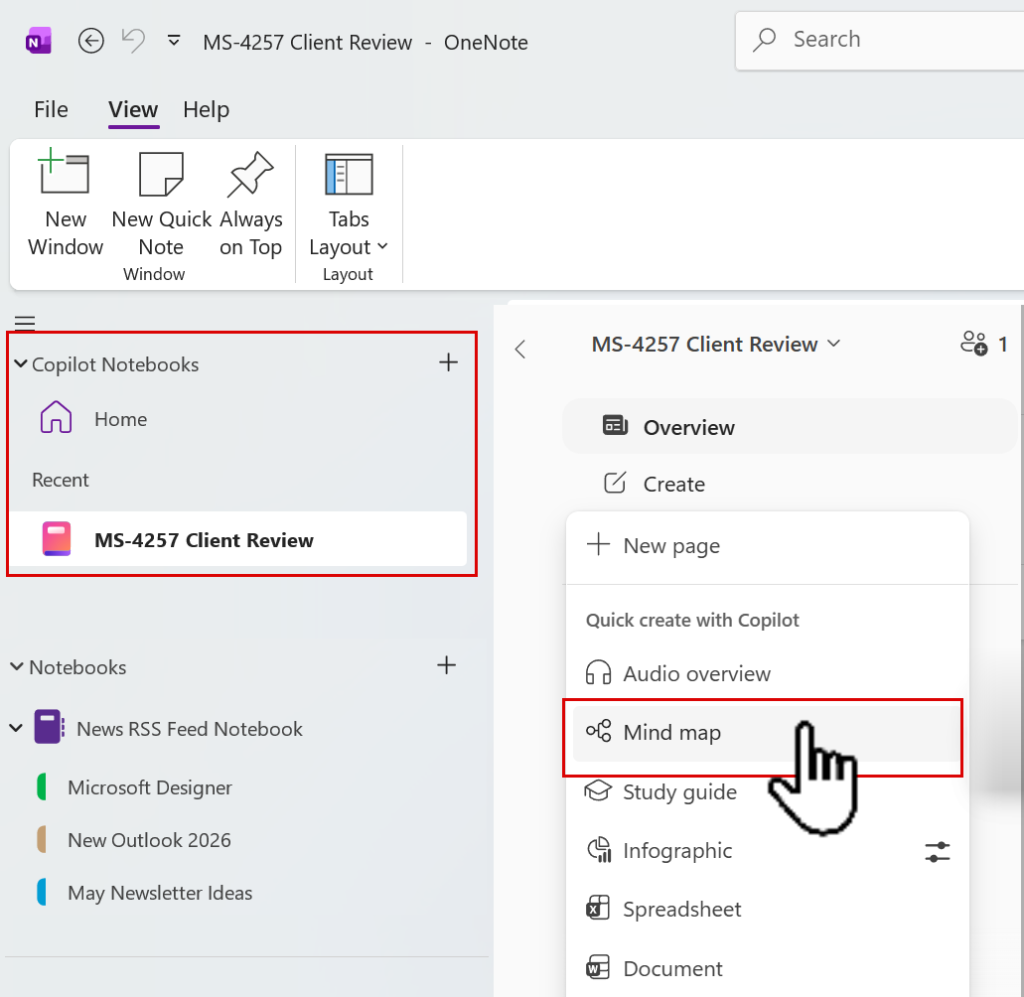
Copilot Notebooks are also integrated into OneNote.
- Open OneNote.
- Under Copilot Notebooks, open your project Notebook.
- From there, select Create
- Choose Mind Map.
Having both entry points is useful. You can start from Microsoft 365 Copilot when your work begins with Copilot, or access the same project through OneNote when you are already working there.
When Should You Use a Copilot Notebook Mind Map?
Before creating a Mind Map, there is a bigger question: Did this work need a Copilot Notebook in the first place?
I wouldn’t create another Notebook just to generate a Mind Map. A stronger use case starts with a purpose-built Notebook that contains related sources you expect to use repeatedly.
In the Create a Copilot Notebook: Four Questions to Ask post, I use four questions to test whether creating another Notebook makes sense.
Here are use cases to jump-start your creative juices.
Preparing a Presentation or Speaking Engagement
This is one use I find particularly interesting.
When preparing a presentation, training session, or speaking engagement, a Mind Map can help identify the major themes within your reference material.
You can use those themes to begin thinking about presentation sections, supporting topics, examples, key messages, and areas requiring additional research.
However, this is also where I immediately want the feature to go one step further: turn the Mind Map into an outline.
More on that shortly.

Project Planning
A project manager could generate a Mind Map from requirements, meeting notes, timelines, decisions, risks, and other project references.
Instead of reviewing those documents independently, the project manager gets a visual starting point for understanding how the project’s major areas connect.
Understanding a Complex Project
Sometimes the challenge is not finding information. It is understanding how everything fits together.
A Mind Map can help someone joining an existing project see the relationships among major topics before diving into dozens of individual files.
For that scenario, the visual structure may be more useful than another long summary.
What Can Copilot Notebook Mind Maps Do Today?
The current Mind Map experience is primarily an exploration and understanding tool.
Copilot analyzes the references in your Notebook and generates a visual structure of topics and relationships.
You can explore the different branches, select nodes to learn more about a topic, and use Copilot to continue investigating the information.
- What are the major themes in these references?
- How do these topics connect?
- What areas deserve additional investigation?
- Where should I focus before a meeting or presentation?
You can also export the Mind Map as an image, which gives you a way to preserve or share the visual.
For me, though, the Mind Map should help me move toward the next deliverable, not necessarily be the final deliverable.
And that is where some of the current limitations become noticeable.
What Is Missing From Copilot Notebook Mind Maps?
This is where my feature wishlist begins.
The current Mind Map helps me see the information. I want more tools that let me work with the structure it creates.
1. Give Copilot Instructions Before Generating the Map
I would like more control over what Copilot emphasizes when creating the Mind Map.
Instead of only generating a map and accepting the structure Copilot creates, imagine providing instructions such as:
Create a Mind Map focused on project risks, dependencies, owners, and unresolved decisions.
Or:
Create a Mind Map that organizes these references into sections for a 45-minute presentation.
The same Notebook sources can support very different Mind Maps depending on your goal.
2. Edit the Mind Map
I want to be able to edit the generated Mind Map.
AI may identify the major themes, but that does not mean its organization matches how I want to present, manage, or explain the information.
For example, I may want to rename a node, remove something that is not important, add a missing topic, or change the hierarchy without asking Copilot to do it.
3. Drag and Drop Nodes
Suppose Copilot places Training underneath Communications, but my project treats Training as its own workstream.
I should be able to move it.
Drag-and-drop functionality would turn the Mind Map from an AI-generated visualization into something I can refine based on my knowledge of the project.
4. Add Color Coding
Color can communicate meaning, not just make the Mind Map prettier.
For project management, I might want red for risks, yellow for items needing attention, green for completed or approved areas, blue for informational topics, and purple for decisions.
Another user may want colors for departments, phases, priorities, or owners.
Ideally, users should be able to define what the colors mean.
5. Add Comments or Notes
Imagine selecting a node and adding: Waiting for Legal review or Nestor owns this item.
Comments or notes would allow the Mind Map to capture some of the thinking that happens after Copilot generates the initial structure.
For project teams, that could make the Mind Map more useful during planning and review discussions.
6. Export the Mind Map as an Outline or Excel file
This is high on my wish list. After I organize the Mind Map, I want an option such as:
Export to Outline or Excel file
Imagine generating a Mind Map from your project sources, reorganizing the branches, and then converting that structure into a Word document or another editable outline.
For a presentation, the major branches might become sections. Child nodes could become supporting points.
For a project, the branches might become workstreams with supporting topics or issues.
Today, I can use Copilot to continue that workflow, but I would prefer the transition built directly into the Mind Map experience.
Mind Maps Are Useful, but They Are Still Evolving
Overall, I think Copilot Notebook Mind Maps are a good option for simple visual brainstorming, identifying themes, and understanding connections across your Notebook references.
For some users, that may be exactly what they need.
For more complex workplace scenarios, I think the feature needs additional user control before it can become a stronger planning tool.
Microsoft continues to expand Copilot Notebooks, and some capabilities are still rolling out gradually. That is why I am paying attention not only to what Mind Maps can do today, but also to where the feature could go next.
This leads to give Microsoft feedback. User feedback can help Microsoft understand how people actually want to use these features at work.
You can provide feedback directly from Microsoft 365 Copilot by opening Settings and more and selecting Feedback.
Stay connected
I will keep testing Copilot Notebook features, sharing practical workplace scenarios, and documenting changes as the experience evolves.
Now, Go and Work Your Magic!
Member of the #MSFTOneNotePartner Content Program
4X Microsoft MVP (Most Valuable Professional)