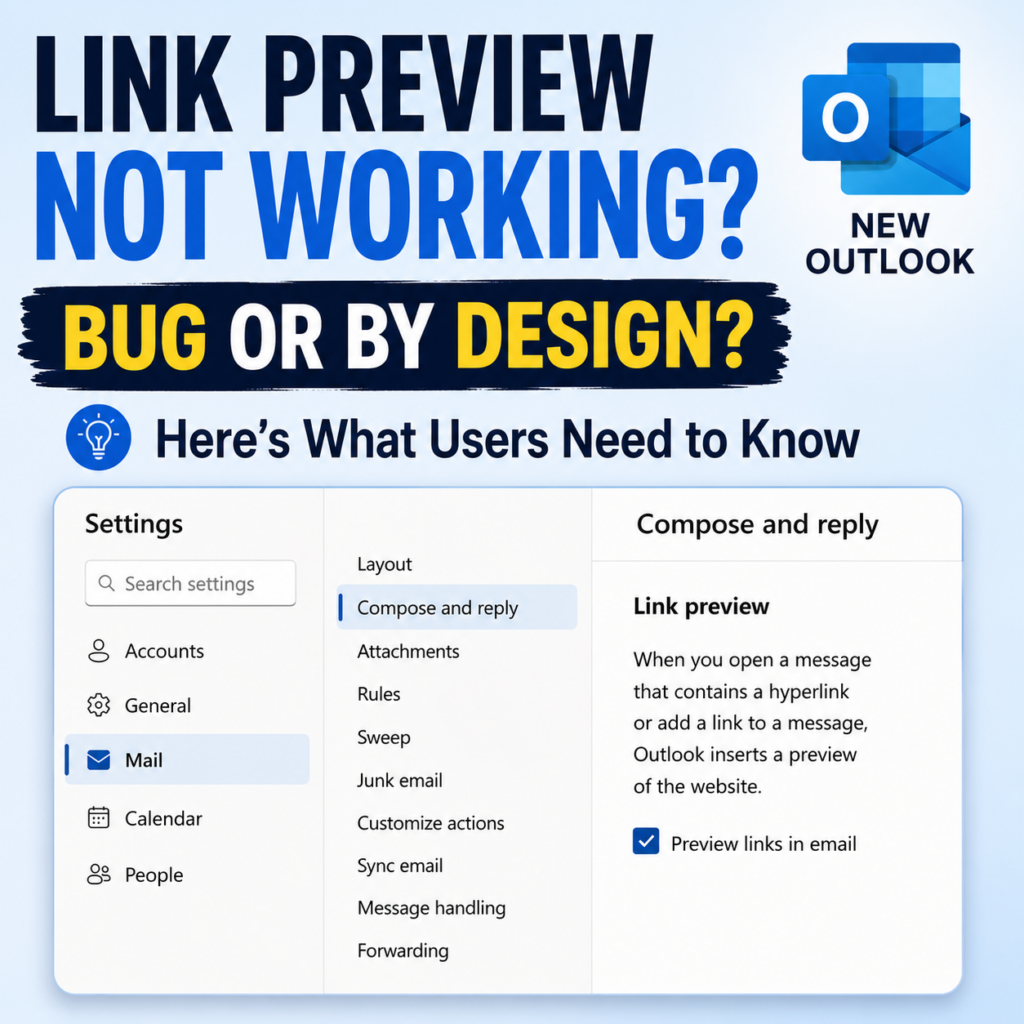
Outlook Link Preview has been deprecated, according to a Microsoft response in a recent discussion about the feature.
If you have tried Link Preview lately and wondered why it was not working, you may have assumed it was simply broken. That assumption made sense. The setting is still visible in Outlook, and Microsoft still has support documentation explaining how to use it. (Microsoft Support)
Microsoft plans to remove the setting.
As of August 14, 2026, I have not found a broad Microsoft announcement about this deprecation. I asked Microsoft directly whether the change was previously announced publicly and am waiting for a response.
I will update this post as additional information becomes available.
What Did Outlook Link Preview Do?
Outlook Link Preview turned an ordinary website URL into a richer visual preview inside an email.
When you added certain website links, Outlook could display information such as:
- the webpage title
- a thumbnail image
- a short description
Without Link Preview, the URL simply appears as a standard hyperlink. Microsoft’s current documentation shows both the standard URL and rich-preview experiences. (Microsoft Support)
Users could control the feature from:
- Settings > Mail > Compose and reply > Link preview
- Then select or clear Preview links in email.
That setting is still visible today.
Why Did Users Think Link Preview Was Broken?
This is where the confusion comes in.
Based on testing shared in the Microsoft discussion, Link Preview has not been working for some time in:
- New Outlook
- Outlook on the web
- Outlook.com
At the same time, the setting remains available, and Microsoft’s current Support documentation still explains how to use the feature. The documentation currently says Link Preview is turned on by default and provides steps for turning Preview links in email on or off. (Microsoft Support)
Therefore, users had little reason to know that Link Preview had actually been deprecated. If nothing happened when you inserted a link, it looked like a feature that simply was not working.
If you are tracking other differences between Outlook versions, my New Outlook vs. Classic Outlook Feature Comparison covers additional features and changes.
Microsoft Plans to Remove the Link Preview Setting
Microsoft also confirmed that there are no current plans to reintroduce Link Preview. The Link Preview setting will be removed.
So, don’t be surprised when the Link Preview setting disappears from Outlook.
What Is Still Unclear?
There are still a few unanswered questions.
Microsoft has not yet provided, or I have not located:
- a date for removing the setting
- a rollout schedule
- a replacement for the feature
I am also not assuming this applies to every Outlook feature called Link Preview.
Microsoft currently documents a separate Link Preview, Powered by Bing feature for Outlook on iOS and Android. That feature allows users to preview a received web link by tapping and holding it and has its own Settings > Link Preview control. (Microsoft Support)
Therefore, this post focuses on New Outlook, Outlook on the web, and Outlook.com until Microsoft provides broader information.
What Should Outlook Users Know?
If Preview links in email is enabled but Link Preview is not working, I would not spend much time troubleshooting it.
Standard hyperlinks are not going away. The deprecated feature provided the richer webpage preview displayed with the link. Microsoft’s current documentation also shows that a URL remains a regular hyperlink when Link Preview is turned off. (Microsoft Support)
I will update this article when Microsoft publishes additional information or removes the setting from Outlook.
Final Takeaway
What appeared to be a broken Outlook feature now has an explanation: Link Preview has been deprecated.
Microsoft plans to remove the setting, though we do not yet know when.
For now, if you see Preview links in email under Outlook Settings, don’t be surprised if it disappears in a future update.
If this information was helpful, the Microsoft 365 Retired Features category includes more posts about retired features, upcoming changes, and what they mean for users.
Now, go work your magic.