The New Outlook for Windows is here to streamline email and calendar management, combining decades of functionality into one powerful platform. This post will examine the reasons behind the transition, key dates to note, and a breakdown of the features. By the end, you’ll understand what to expect and how to prepare for the changes ahead.
Last Modified Date: 3/11/2026
Why the Transition to the New Outlook for Windows?
For decades, users have depended on different versions of Outlook to manage email, calendars, and productivity.
- Classic Outlook, launched in 1997, offered powerful features and deep customization for business users.
- Mail and Calendar Apps were designed as lightweight tools for personal use, especially on mobile devices.
However, maintaining multiple Outlook platforms led to inconsistent experiences across desktop, web, and mobile. Different versions meant different features, designs, and limitations—which created confusion and inefficiency for users and IT teams alike.
To fix this, Microsoft is unifying the platform. The New Outlook brings everything together under one experience—on desktop, web, and mobile—with the goal of delivering:
- Consolidation: No more switching between Classic Outlook, Mail/Calendar apps, and Office 2016/2019. Everything is now under one roof.
- Streamlined Experience: A modern, scalable platform built for work, school, and personal productivity—with improved customization and consistency.
- Future-Ready Foundation: Microsoft is rebuilding Outlook from scratch to integrate AI, cloud capabilities, and other next-gen technologies.
While some legacy features are still on the way, Microsoft is actively working to bring back key tools and improve the platform for the long term.
Why Are Some Features Missing in New Outlook?
If you’re wondering why certain classic features haven’t made it into New Outlook yet, you’re not alone. Microsoft has taken a bold approach by rebuilding Outlook’s infrastructure from the ground up. Rather than simply layering new features on top of the old system, they’ve chosen to create a faster, more reliable foundation for the future.
As part of this rebuild, some familiar tools are still in progress or under review. Microsoft has confirmed that many core features will return, along with modern enhancements designed for today’s workflows.
Here’s why some features aren’t available yet:
- Legacy Technology: Some classic features were built on outdated frameworks that aren’t compatible with the new infrastructure.
- Rarely Used Tools: Features with low usage have been deprioritized to focus on high-impact improvements.
- Focus on Innovation: Microsoft is prioritizing performance, flexibility, and new functionality over maintaining every legacy tool.
- Resource Allocation: Rebuilding takes time. Features are being reintroduced based on technical feasibility and user demand.
Stages Explained
he transition to the New Outlook will occur in phases, ensuring users have time to adapt.
Opt-in Stage: August 2024: Most users and organizations are in the Opt-in Stage. During this stage, users can toggle on the New Outlook experience with the option to return to Classic. Also, the logo and New Outlook application name changed.
New Outlook is now referenced as Outlook or Outlook for Windows. You may also see it as Outlook (new). An envelope-shaped icon represents it. Classic Outlook is now Outlook Classic and has kept the square-shaped email logo.

New Outlook for Windows Timelines
Major changes are coming to New Outlook for Windows between 2025 and 2029. Depending on your subscription, you may need to fully switch to the New Outlook, enter the opt-out phase, or plan for the end of support on older applications.
The Opt-Out Stage means New Outlook becomes the default email client. However, users can still switch back to Classic Outlook—for now. This is the time for organizations to identify workflow issues and share feedback with Microsoft. Early action will help reduce disruption later.
Let’s break down the timeline so you can prepare for each milestone.
January 2025
- Mail and Calendar Apps: These apps will be fully replaced by New Outlook for Windows. Users can no longer download them from the Microsoft Store or Google Play.
- Small and Medium-Sized Businesses (SMBs): SMB subscribers will begin the Opt-Out Stage. The New Outlook will become the default, but switching back to Classic will still be allowed. This transition has rolled out gradually.
October 2025
- Office 2016 and 2019: These versions reached the end of support. Users may migrate to a supported Microsoft 365 plan or the latest Office version, which includes New Outlook. Delaying migration could lead to reduced functionality and increased security risks.
October 2026
- Office 2021 Standalone: This version includes a fixed feature set from its release date and will not receive future New Outlook updates. After October 2026, Microsoft will stop releasing security and software updates, making continued use a risk.
October 2029
- Office 2024 Standalone: This version includes New Outlook for Windows. Like other standalone versions, it will no longer receive updates after the support period ends.
May 2027
As of March 2026, Microsoft has moved this date from April 2026 to May 2027 to allow organizations more time to investigate.
- Enterprise E3/E5 Licenses: Enterprise users worldwide will enter the Opt-Out Stage. A formal announcement date is still pending.
- Education (EDU) Licenses: EDU tenants will also transition to the Opt-Out Stage, though no specific rollout date has been provided.
No Date Announced
- Cutover Stage: This final stage marks the end of Classic Outlook. Microsoft will give users a 12-month notice before this change takes effect. As of now, no date has been confirmed.
Feature Availability: A Detailed Breakdown
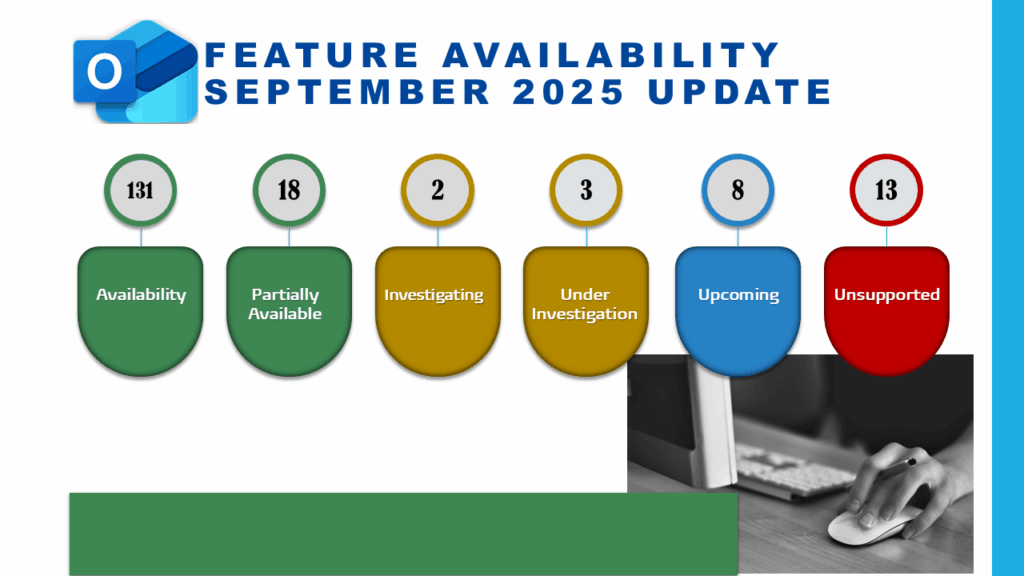
Microsoft has grouped New Outlook features into six categories: Available, Partially Available, Investigating, Under Investigation, Coming Soon, and Unsupported. Below is a quick summary of the current status as of September 2025. (Tip: The latest version is updated regularly.)
- Available and Partially Available Features
- New Outlook has delivered 149 features since 2023, significantly enhancing email and calendar experiences.
- Calendar Improvements: Now you can follow meetings, manage in-person events, access meeting recaps, preserve declined meetings, and adjust your work hours or location with ease.
- Mail Enhancements: Pin or snooze messages, favorite groups and people, and clean up your inbox faster using Sweep.
- Partially Supported: You can open .msg and .oft file types, access .pst archives, and work offline—though functionality is still limited in these areas.
- Exclusive to New Outlook: Microsoft has introduced 28 features that are only available in New Outlook and not supported in Classic Outlook.
Investigating or Under Investigation
- Based on user feedback, 5 features are currently under review. Microsoft is evaluating how or if they should be implemented. (Get access to the full list of features being evaluated.)
Coming Soon
- On the roadmap, 8 additional features are planned. Highlights include multiple mail profiles and multi-select calendar events, a long-requested feature.
Unsupported Features
Some features won’t make the transition to New Outlook. These include VBA Macros, Custom Forms, COM Add-ins, SharePoint calendar syncing, and few more.
In total, 13 features are officially marked as unsupported and will not be added to New Outlook.
How to Stay Updated
Here are the top resources to keep you informed about the progress for New Outlook for Windows:
- Microsoft Roadmap Website: Stay updated on feature rollouts and updates.
- Microsoft Admin Center: Check announcements and administrators’ resources.
- Microsoft Feature Comparison Website: Compare features in New Outlook vs. Classic Outlook grouped by 14 functionalities. (The above summary was collected from this website.)
- View the New Outlook vs Classic Outlook Feature Comparison (2026) – TRACCreations4E by availability.
- Sign up for the TRACCreations4e Newsletter for tips on maximizing your experience with the New Outlook and other Microsoft 365 applications.
Conclusion: Get Ready for a Better Outlook
Although some organizations and end-users were hesitant at first, adoption of the New Outlook tripled in 2024—bringing tens of millions of users on board. Clearly, this shift isn’t just cosmetic. The New Outlook offers a modern experience with improved performance, streamlined tools, and a design that helps you work faster and smarter.
Now is the time to get familiar with what’s changing and take proactive steps to prepare your team.
Next Steps
- Mark key dates so your organization can transition smoothly and avoid surprises.
- Use the Opt-Out Stage to test New Outlook features and identify any workflow gaps.
- Stay informed with official Microsoft updates and subscribe to TRACCreations4e’s newsletters and video playlists for timely how-tos and deep dives.
Now, go and work your magic.