Learn simple rules to improve accuracy by using OneDrive or SharePoint, linking to files instead of folders, and being specific.
First, One Simple Definition (No Tech Talk)
Grounding is the web or work content Copilot is allowed to use when answering you.
Web grounding is web-based content or uploaded files, and is available with the Copilot Chat Microsoft license.
Work grounding includes files, emails, and chats that you have access to in prompts for users with a Microsoft 365 Copilot add-on license.
Copilot works best when you give it guidance on the goal, purpose, and outcome you want to achieve.
You can watch this video for a side-by-side demo of the Web vs Work Grounding experience.
Where You Can Add Reference Files in Copilot
Depending on the Copilot experience you’re using, reference files can be added in several places, including:
- Copilot Chat in Microsoft 365 Apps
- Copilot Studio
- Copilot for the Web
- Copilot Notebooks (requires an add-on Copilot license)
- Custom Agents (some agents require an add-on Copilot license)
The rules below apply no matter where you’re working.
Why Copilot Misses Files: The 3 Rules That Fix It
The 4 Rules That Keep Copilot Accurate
- Use OneDrive or SharePoint whenever possible
- Link to files, not folders
- Use cloud files for saved and scheduled prompts
- Be specific when accuracy matters
Everything else below explains why these rules work.
Rule #1: Use OneDrive or SharePoint Whenever Possible
Where your files are stored matters.
Files saved in OneDrive or SharePoint:
- Are easier for Copilot to access
- Respect permissions
- Work more consistently across Copilot experiences
- Are better suited for collaboration and reuse
If a file is important or may change, move it to the cloud first.
This one step prevents many Copilot issues.
Understanding why Copilot misses files helps you select the right files, folders, and storage locations so Copilot can provide accurate results.
Rule #2: Why Copilot Misses Files When You Use Folders Instead of Files
It’s tempting to give Copilot a folder and say, “Use everything in here.”
That’s where accuracy starts to break down.
What happens when you use a folder
- Copilot can see the folder
- Copilot can list files if you ask
- Copilot may only use some of the files when answering questions
- Adding new files later does not guarantee they’ll be used
Folders are convenient—but unreliable when accuracy matters.
What works better
- Point Copilot to the specific file or files you want it to use
- This removes guesswork
- You stay in control of what Copilot reads
Tip: If you insist on linking to a folder, don’t be afraid to ask Copilot, “How many files are saved in this folder?” The generated result will confirm it.
Simple rule: Link to files, not folders, for best results.
- Folders help Copilot find things.
- Files help Copilot answer correctly.
Rule #3: Use Cloud Files for Saved and Scheduled Prompts
When you save or schedule prompts in Copilot, file choice becomes even more important.
Saved and scheduled prompts are designed to run later, not just in the moment.
Here’s what matters:
- When a saved prompt references a OneDrive or SharePoint file, Copilot reads the latest version of that document when the prompt runs again
- This means updates made to the file are reflected automatically
If you save or schedule a prompt using a local file:
- Copilot only uses the version of the file that existed at the time it was added
- Any updates made later are not reflected
- Results may appear outdated
Best practice:
If a prompt is meant to be reused or scheduled, always reference cloud-based files.
Rule #4: Be Specific When Accuracy Matters
Copilot responds to the clarity you give it.
If you need a precise answer:
- Tell Copilot exactly which file to use
- Avoid vague instructions like “use that folder”
Good examples:
- “Use this file to summarize…”
- “Compare these two documents…”
- “Answer based on this policy file…”
Clear input leads to clear output.
Rule #5: Understand How Local Files Work
Local files (files stored on your computer) work differently.
When local files can be added
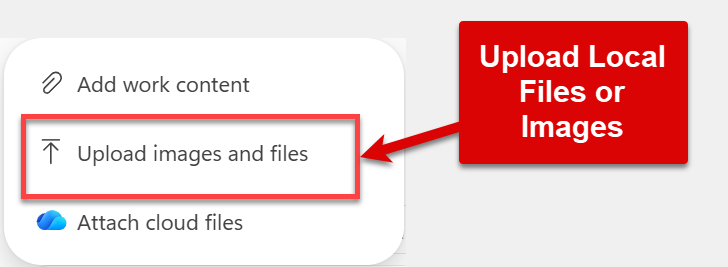
- The only time you can add a local file is when you see:
“Upload images and files”
- This option appears in specific Copilot experiences such as Copilot Chat, Notebooks, and Pages.
What to know about local files
- Local files are static
- Copilot does not track changes made later
- If the file is updated, Copilot will not automatically see the update
If accuracy matters and the file may change, move it to OneDrive or SharePoint instead of using a local file.
Comparison Table: Local vs Cloud References
Feature | Local Files / Folders | Cloud Files / Folders (OneDrive / SharePoint) |
Updates reflected | ❌ No – static snapshot | ✅ Yes – latest version used |
Version control | ❌ None | ✅ Full version history |
Accessibility | Device-specific | Anywhere with permissions |
Collaboration | Limited | Seamless |
Saved / scheduled prompts | ❌ Not reliable | ✅ Recommended |
Best use case | Static, rarely updated files | Dynamic, frequently updated content |
Rule #6: Keep Files to a Reasonable Length
Copilot also works best when files are a reasonable size.
When summarizing or referencing content:
- Keep documents under 300 pages
- Very large documents may be partially processed or give incomplete results
If a document is very long:
- Break it into smaller files
- Reference only the sections Copilot needs
- Be specific about which file to use
This helps Copilot stay accurate and responsive.
The Bottom Line
If Copilot ever feels unreliable, check these first:
- Did I use OneDrive or SharePoint?
- Did I link to a file, not just a folder?
- Did I clearly tell Copilot which content to use?
Follow those three rules and Copilot becomes far more consistent—especially for everyday business tasks.
Before You Go
If you or your team are new to Microsoft Copilot and want practical, real-world guidance, explore our training offerings designed for everyday business users and administrative professionals.
Now, go and work your magic!