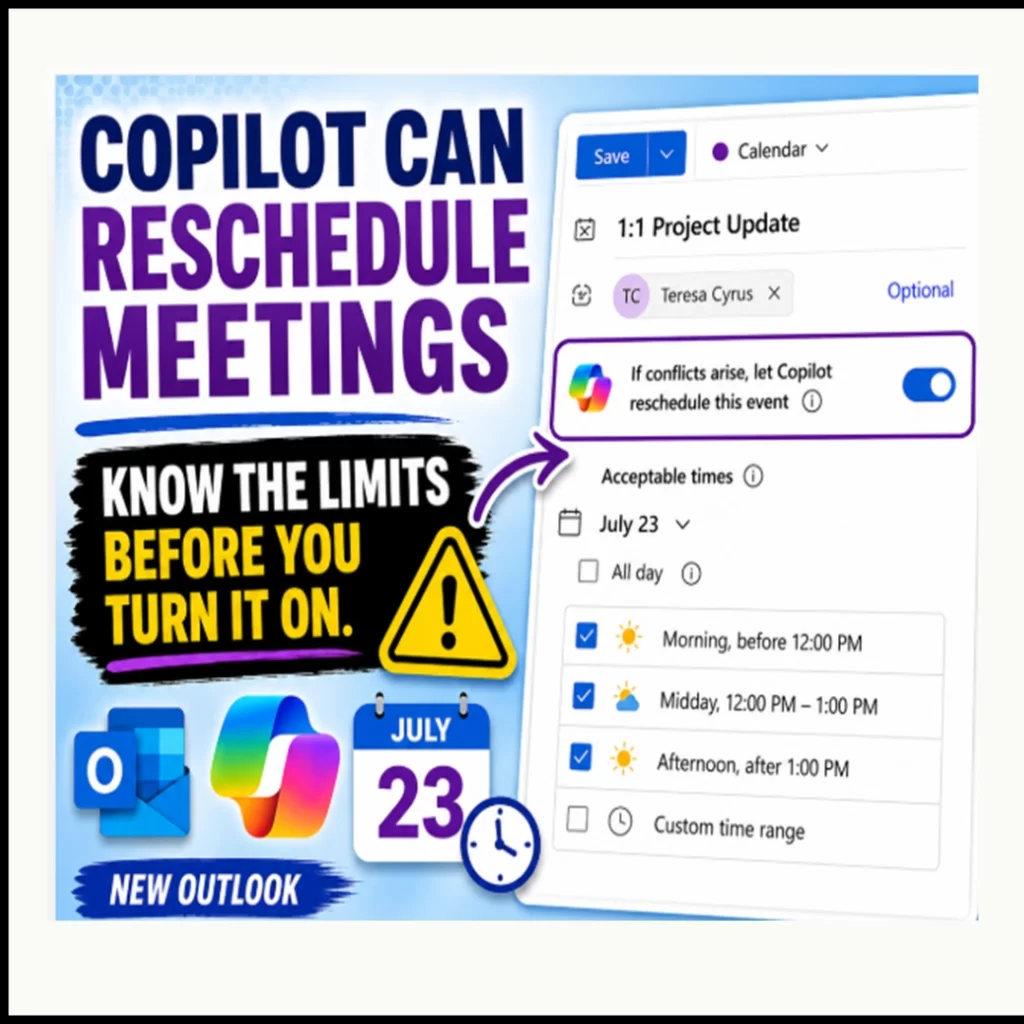
Copilot rescheduling in Outlook can automatically move certain personal events and one-on-one meetings when a new calendar conflict appears. This could help users avoid scheduling delays and
spend less time rearranging their calendars. However, before turning it on, users should understand what Copilot can move, what triggers a change, and what can cause it to stop managing the event.
How Copilot Rescheduling in Outlook Works
Copilot does not automatically manage your entire calendar. The option is disabled by default, and you must enable it for each eligible event or meeting series. Therefore, you remain in control of which events Copilot may move.
How to Enable Copilot Rescheduling in Outlook
- Open Calendar in New Outlook for Windows, Outlook on the web, or Microsoft 365 Calendar in Teams.
- Create a new event or series, or open an existing one.
- For a one-on-one meeting, invite one attendee.
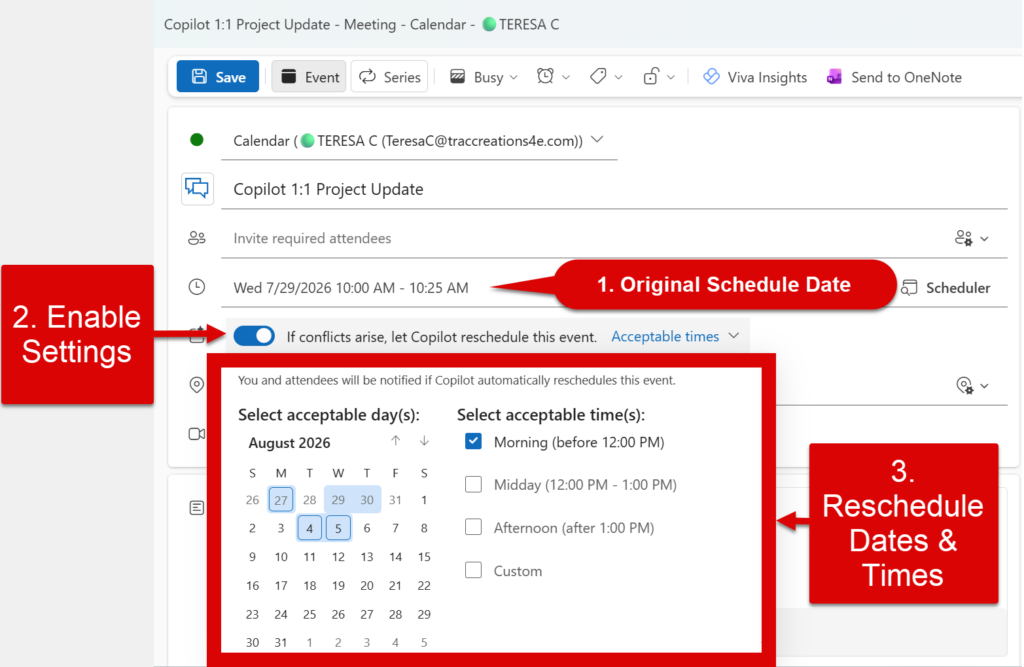
- Turn on If conflicts arise, let Copilot reschedule this event.
- Select Acceptable times.
- Choose the acceptable days and one or more time periods:
- Morning, before 12:00 PM
- Midday, from 12:00 PM to 1:00 PM
- Afternoon, after 1:00 PM
- A custom time range
- Save the personal event or send the meeting invitation.
Selecting acceptable days and times is optional. However, Microsoft says Copilot provides better results when you choose them.
For example, you may be willing to move a Friday morning check-in to Monday afternoon, but not to Friday evening. Your selections give Copilot boundaries.
Recurring series need extra attention. If automatic rescheduling is off when you create the series, you cannot turn it on later for only one occurrence. If it is enabled for the series, you can turn it off for a single occurrence, but you cannot assign different acceptable days and times to that occurrence.
Copilot can also help earlier in the scheduling process. With Copilot Calendar Instructions, you can tell Copilot to accept, decline, follow, or remove certain meeting invitations based on the organizer, subject, day, or time. Calendar Instructions manage incoming invitations, while automatic rescheduling handles conflicts after an eligible event is already on your calendar.
Why This Is Not a Set-It-and-Forget-It Feature
Turning on automatic rescheduling once does not guarantee that Copilot will continue managing the event. The event must remain eligible.
For example, a meeting may begin as a one-on-one but later grow to include another person. As a result, Copilot may stop managing it.
Outlook can notify you that:
- The event was successfully rescheduled.
- The event could not be rescheduled within your preferences.
- The event changed and can no longer be automatically rescheduled.
Users can review this activity in Outlook’s Notifications pane. Microsoft says email notifications are planned, but they are not available yet.
How to Enable Calendar Notifications
- In New Outlook, select Settings.
- Select General, and then select Notifications.
- Under Notify me about, turn on Calendar.
- Expand the Calendar section and review the available options.
- Make sure automatic rescheduling notifications are enabled if that option appears.
- Select the Notifications bell to review recent calendar and Copilot activity.
Microsoft identifies the Outlook Notifications pane as the place to review Copilot’s rescheduling activity. Outlook’s general Calendar notification controls are under Settings > General > Notifications.
Do not assume Copilot is still managing a meeting simply because you enabled the feature weeks ago. Check the event and the Notifications pane when its details change.
What Causes Copilot to Reschedule an Event?
Turning on the option does not tell Copilot to fix conflicts that already exist.
Instead, Copilot acts when a new conflict appears later. This happens when you accept another event at the same time or create, move, or reschedule another event into that time.
In addition, the conflicting event must show you as Busy or Out of Office. An event marked Tentative will not trigger automatic rescheduling.
If several acceptable openings are available, Copilot chooses the one closest to the original meeting time within the days and times you approved.
Before you blame New Outlook because an event did not move, remember that this behavior is part of Copilot’s design.
Which One-on-One Meetings Qualify for Copilot Rescheduling?
This is the most important limitation.
Automatic rescheduling supports personal events with no attendees and meetings between the organizer and one other person. It is not designed for group meetings.
If another attendee is added later, Copilot stops managing the meeting. The same can happen when the invitation is forwarded to more people. However, a conference room does not count as another attendee.
One-on-one meetings often grow into small group discussions. For example, you may create a recurring check-in with your manager and later add a project lead. That meeting is no longer a true one-on-one.
Before enabling the feature, ask:
Will this meeting remain one-on-one?
In my opinion, Microsoft needs to make this limitation more noticeable. Users could miss the notification and continue believing Copilot is managing the meeting.
What Attendees See When Copilot Reschedules a Meeting
When Copilot moves the meeting, the attendee receives a standard meeting update showing the new date or time. Currently, the update does not say that Copilot made the change.
Also, if you enable automatic rescheduling for an existing meeting but make no other changes, the attendee does not receive an update simply because you turned on the feature.
Therefore, organizers should continue reviewing their calendars and notifications.
Does Copilot Rescheduling Work With External Attendees?
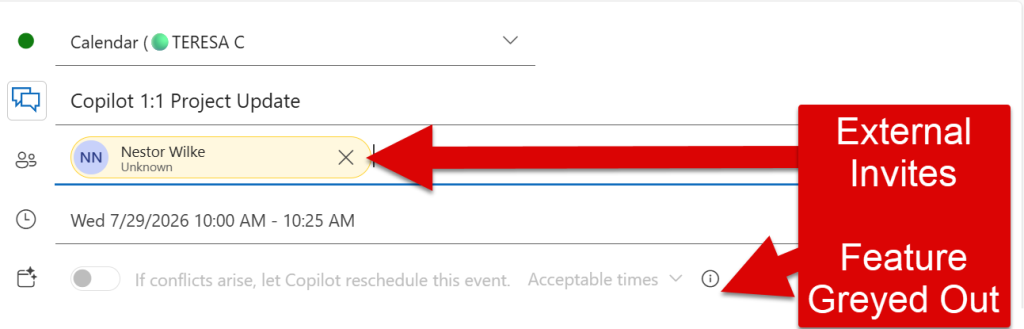
Automatic rescheduling does not appear to support one-on-one meetings with external attendees.
During my testing, the Copilot rescheduling option became unavailable as soon as I added someone outside my Microsoft 365 organization to the attendee field. In other words, the meeting may still be one-on-one, but Copilot will not manage it when the other person is external.
This is an important limitation for users who regularly meet with clients, vendors, consultants, or business partners. Even though those meetings may be flexible, you will need to reschedule them manually if a conflict occurs.
Other Reasons Copilot May Stop Managing the Event
Adding another attendee is not the only limitation. Copilot also cannot continue managing the event when:
- It is longer than five hours or is an all-day event.
- It is on a secondary or shared calendar.
- It shows the organizer as Out of Office.
- The recurring series uses an unsupported schedule.
- The attendee declines the one-on-one meeting.
- Copilot tried five times without finding an acceptable opening.
- The event has already been automatically rescheduled five times.
Microsoft also lists limitations for recurring series scheduled less frequently than monthly or on a specific date of the month.
Therefore, treat Copilot as a scheduling assistant, not a replacement for reviewing your calendar.
Best Uses for Copilot Rescheduling in Outlook
I see the most value for flexible personal events and internal one-on-one meetings that are likely to remain one-on-one.
Examples include:
- A manager and employee check-in
- A mentoring session
- A recurring meeting with one colleague
- A flexible personal appointment
- A planning or focus block
The key word is flexible. Do not enable automatic rescheduling for an event that must stay at its original time or is likely to include more people later.
Availability and Licensing
Microsoft publicly announced this feature in February 2026 after its Message Center rollout timeline had changed several times. It is available in:
- New Outlook for Windows
- Outlook on the web
- Microsoft 365 Calendar in Teams
The feature requires a Microsoft 365 Copilot Enterprise license. Therefore, it is a premium Copilot capability and is not included with the basic Copilot Chat experience.
Because Microsoft deploys Microsoft 365 features gradually, some eligible users may see the option before others.
My Thoughts
Overall, Copilot rescheduling in Outlook could help reduce scheduling delays. Still, it does not remove the need to review your calendar and notifications.
Now, go work your magic.